
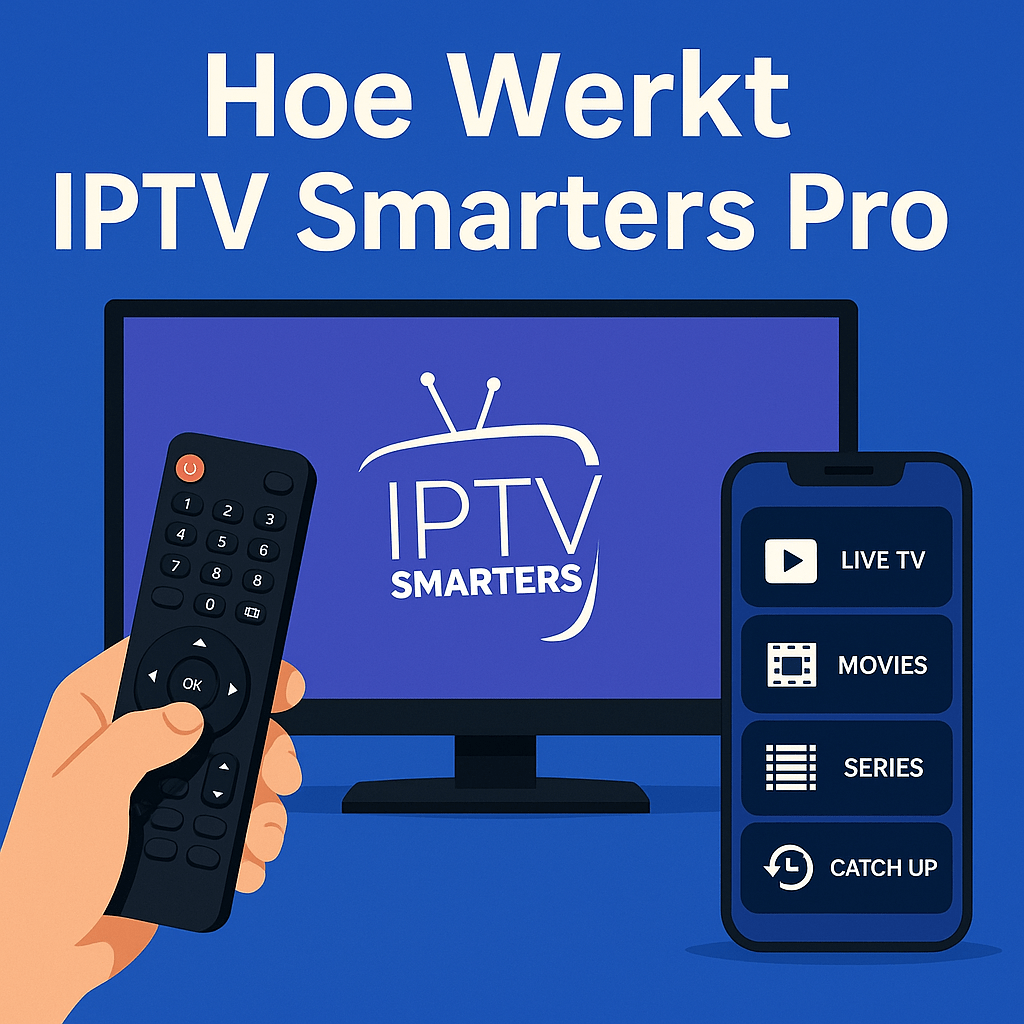
IPTV Smarters Pro is one of the most popular apps for watching IPTV on various devices. In this comprehensive guide, we explain step-by-step how IPTV Smarters Pro works, how to install it, and how to get the most out of it.
What is IPTV Smarters Pro?
IPTV Smarters Pro is a free media player app that lets you play IPTV services on various devices. The app acts as an interface between your IPTV subscription and your device, offering a user-friendly way to watch live TV, movies, series, and other content.
Key Features of IPTV Smarters Pro
IPTV Smarters Pro distinguishes itself with several useful features:
- Support for multiple IPTV accounts simultaneously
- Electronic Program Guide (EPG) for program overview
- Catch-up TV functionality
- Parental controls with PIN code protection
- Organize favorites and playlists
- Multi-screen display
- Built-in video player with subtitles
- Compatible with various IPTV protocols (M3U URL, Xtream Codes API)
Which Devices Does IPTV Smarters Pro Work On?
IPTV Smarters Pro is available for almost all popular platforms:
Android Devices
- Android smartphones and tablets (Android 5.0 or higher)
- Android TV boxes
- NVIDIA Shield
- Mi Box
- Other Android TV devices
Apple Devices
- iPhone and iPad (iOS 10.0 or later)
- Apple TV (tvOS 12.0 or later)
Other Platforms
- Amazon Fire TV and Fire Stick
- Smart TVs with Android TV
- Windows PC (via Android emulator)
- Mac (via Android emulator)
Want to know which device is best for IPTV? Check out our best IPTV box 2025 guide.
How to Install IPTV Smarters Pro?
Installation on Android Devices
Step 1: Download the App
- Open the Google Play Store on your Android device
- Search for “IPTV Smarters Pro”
- Click “Install”
- Wait for the installation to complete
Step 2: Open the App
- Tap the IPTV Smarters Pro icon
- The app opens and shows the welcome screen
- You are now ready to add your IPTV account
Installing on Fire TV / Fire Stick
Step 1: Allow Installation from Unknown Sources
- Go to Settings > My Fire TV > Developer Options
- Enable “Apps from Unknown Sources”.
- Confirm the warning
Step 2: Install Downloader App
- Go to the search function
- Search for “Downloader”
- Install the Downloader app
Step 3: Download IPTV Smarters Pro
- Open the Downloader app
- Enter the download URL for IPTV Smarters Pro APK
- Download and install the app
- Open IPTV Smarters Pro
Installation on iOS (iPhone/iPad)
Step 1: Download via App Store
- Open the App Store
- Search for “IPTV Smarters Pro”
- Tap “Pick up”
- You may need to enter your Apple ID password
- Wait for the installation to complete
Step 2: Open the App
- Tap the app icon on your home screen
- The app is now ready to use
Installing on Apple TV
Step 1: Via App Store
- Open the App Store on your Apple TV
- Search for “IPTV Smarters Pro”
- Select the app and click “Get”
- Install the app
Step 2: Open and Configure
- Start IPTV Smarters Pro
- Continue adding your IPTV account
How to Configure IPTV Smarters Pro?
After installation, you'll need to add your IPTV account. There are two main methods: Xtream Codes API and M3U URL/Playlist.
Method 1: Xtream Codes API (Most Used)
Step 1: Select Login Method
- Open IPTV Smarters Pro
- Choose “Login with Xtream Codes API”
- This is the most used and recommended method
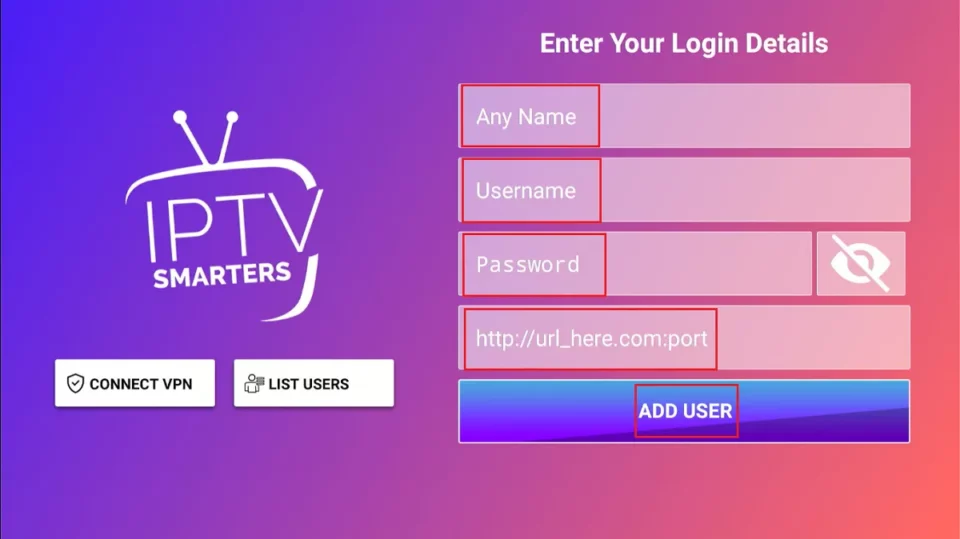
Step 2: Enter Your Details You will need the following information from your IPTV provider:
- Server URL: Your provider's server (e.g. http://server.example.com:8080)
- Username: Your username
- Password: Your password
Step 3: Fill in the Fields
- Please fill in all fields correctly
- Check for typos
- Click on “Add User” or “Login”
Step 4: Wait for Connection
- The app is connecting to the server
- This may take 10-30 seconds
- Upon successful login your channels will appear
Method 2: M3U URL or Playlist
Step 1: Select M3U Option
- Open IPTV Smarters Pro
- Choose “Load Your Playlist or File/URL”
Step 2: Add M3U URL
- Select “Add M3U URL”
- Enter a name for your playlist (e.g. “My IPTV”)
- Paste the M3U URL you received from your provider
- Click on “Add User”
Step 3: Load the Playlist
- The app downloads the playlist
- Channels are loading
- You can start watching now
How do you get your IPTV login details?
If you don't yet have an IPTV subscription with Bestever IPTV:
- Check out our IPTV subscriptions
- Or test with ours first free 4-hour trial
- After purchase you will receive your login details by email
How to Use IPTV Smarters Pro?
Understanding the Interface
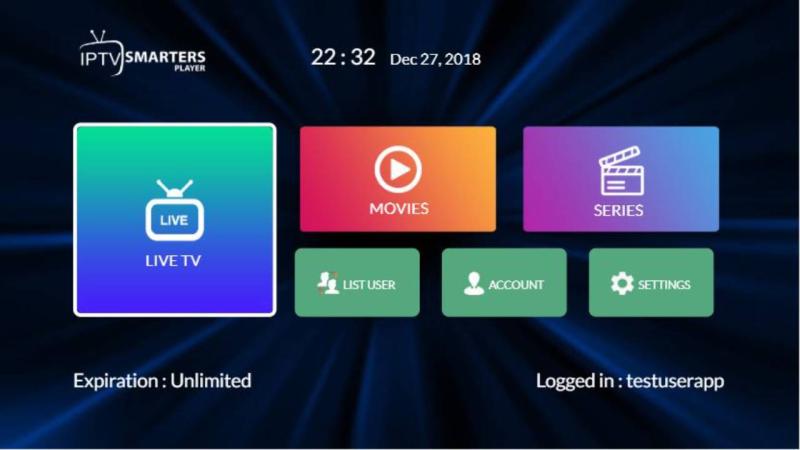
After logging in you will see the main menu with different sections:
Live TV
- All available live TV channels
- Organized by category (sports, movies, news, etc.)
- With EPG (electronic program guide)
Movies (VOD)
- On-demand movies
- Different genres
- HD and 4K content
Series
- TV series
- Organized by season and episode
- Binge-watching possible
Catch-Up TV
- Watch missed programs
- Usually available 7 days a week
- Handy for missed live broadcasts
Watch Live TV
Step 1: Go to Live TV
- Tap the “Live TV” tab at the bottom
- You see all available channels
Step 2: Choose a Category
- Select a category (Sports, Entertainment, etc.)
- Or use the search function for a specific channel
Step 3: Start a Transmitter
- Tap the channel you want to watch
- The stream starts automatically
- Please wait a few seconds for buffering to complete
Step 4: Use the Controls
- Pause/play with the middle button
- Change channels with up/down buttons
- Press back to return to the channel list
Watch Movies and Series (VOD)
Step 1: Open Movies or Series
- Tap “Movies” or “Series” in the main menu
- Browse the available content
Step 2: Select Content
- Tap on a movie or series
- View description, rating and details
Step 3: Start Playing
- Tap “Play” or choose a specific episode
- The video starts automatically
- Enjoy your content
Using EPG (Electronic Program Guide)
Step 1: Open the EPG
- While watching live TV
- Swipe right or press the EPG button
- You see the program overview
Step 2: Navigate through the Overview
- Scroll through different time slots
- See what's coming now and what's coming next
- View program information
Step 3: Jump to a Program
- Tap on a program that has already aired (for catch-up)
- Or see what comes later
Create Favorites
Step 1: Mark as Favorite
- At a channel or movie
- Tap the star icon
- The item is added to your favorites
Step 2: View Your Favorites
- Go to the “Favorites” tab
- All favorites are here
- Quick access to your most viewed content
Set Up Parental Controls
Step 1: Go to Settings
- Tap the menu icon (three lines)
- Select “Settings”
Step 2: Activate Parental Controls
- Enable “Parental Control”
- Set a 4-digit PIN
- Confirm the PIN
Step 3: Lock Categories
- Select which categories should be locked
- These now require the PIN to open
- Ideal for families with children
Advanced Features of IPTV Smarters Pro
Multi-Screen Display
IPTV Smarters Pro supports watching multiple streams simultaneously:
Step 1: Activate Multi-Screen
- Open Settings
- Enable “Multi Screen”
Step 2: Add Screens
- You can watch up to 4 channels simultaneously
- Ideal for multi-match sports
- Tap a screen to make it full screen
Using External Video Player
If you prefer a different video player:
Step 1: Install External Player
- Popular options: VLC Player, MX Player
- Download via the Play Store or App Store
Step 2: Set as Default
- Go to IPTV Smarters Pro Settings
- Select “External Player”
- Select your desired player
Step 3: Enjoy Enhanced Features
- Better codec support
- More playback options
- Possibly better performance
Add Subtitles
Step 1: During Playback
- Tap the screen while watching
- Look for the subtitles icon
- This looks like a speech bubble
Step 2: Select Subtitles
- Select the desired language
- Or turn off subtitles
- The subtitles appear immediately
Adjust Video Quality
Step 1: Open Settings
- Tap the gear icon during playback
- Or go to general settings
Step 2: Choose Video Quality
- Select between Auto, HD, SD
- Auto adapts to your internet speed
- Lower quality for slower connections
Troubleshooting
Buffering Problems
Causes and Solutions:
- Slow Internet Connection
- Check your internet speed (minimum 10 Mbps for HD)
- Use a wired connection if possible
- Connect other devices that use the internet
- Server Overload
- Try another server if available
- Check out during less busy times
- Contact your IPTV provider
- App Cache
- Go to device settings
- Apps → IPTV Smarters Pro → Storage
- Click on “Clear Cache”
- Use a VPN
- Some ISPs throttle IPTV traffic
- A VPN can bypass this
- Sometimes improves streaming speed
App Crashes or Freezes
Step 1: Force Stop and Restart
- Close the app completely
- Delete the app from recent apps
- Open again
Step 2: Clear Cache
- Go to device settings
- Apps → IPTV Smarters Pro
- Clear Cache (not Clear Data!)
Step 3: Reinstall the App
- Remove IPTV Smarters Pro
- Download again
- Reconfigure your account
Channels Not Loading
Check the following:
- Login details Correct
- Verify username, password and server URL
- Check for spaces or typos
- Try logging in again
- Account Status
- Is your subscription still active?
- Contact your provider
- Check if your account has not expired
- Server Availability
- The IPTV server may be temporarily offline
- Wait 10-15 minutes and try again
- Contact support if problem persists
No EPG Available
Step 1: Check EPG Settings
- Go to Settings
- Search for “EPG Settings”
- Make sure EPG is enabled
Step 2: Update EPG
- Some apps have a “Refresh EPG” option
- This downloads the latest program guide
- May take several minutes
Step 3: Provider Issue
- Not all providers offer EPG
- Contact your provider for EPG support
- Consider a provider with full EPG support
Audio/Video Synchronization Issues
Step 1: Try External Player
- Install VLC Player or MX Player
- Set as default player
- Test if the problem is resolved
Step 2: Adjust Audio Delay
- In the video player settings
- Search for “Audio Delay” or “Audio Sync”
- Adjust until audio and video are in sync
Tips for Optimal Use
1. Organize Your Favorites
Use the favorites function to:
- Quickly find your most watched channels
- Create categories by interest
- Save time searching
2. Use a Good Internet Connection
For the best experience:
- Use Ethernet instead of WiFi
- Ensure at least 15 Mbps for HD
- 25-30 Mbps for 4K content
- Close other bandwidth-intensive apps
3. Update Regularly
- Check for app updates in the store
- Updates contain bug fixes and new features
- Improved stability and performance
4. Backup Your Settings
- Keep your login details safe
- Screenshot of important settings
- Makes reinstallation easier
5. Explore All Features
- Try the multi-screen function
- Test catch-up TV
- Explore the VOD library
- Use the EPG for planning
6. Optimize for Your Device
For Android TV/Fire Stick:
- Use a USB hub for Ethernet
- Close other unnecessary apps
- Reboot regularly for best performance
For Mobile Devices:
- Download content for offline viewing (if available)
- Use WiFi instead of mobile data
- Charge your device during extended use
7. Secure Your Account
- Do not share your login details
- Use strong passwords
- Enable parental controls if needed
- Log out of public devices
Frequently Asked Questions
Is IPTV Smarters Pro Free?
Yes, IPTV Smarters Pro is a free app. You only pay for your IPTV subscription, not for the app itself. The app is simply a player for your IPTV service.
Can I add multiple accounts?
Yes, IPTV Smarters Pro supports multiple accounts. This is useful if you have different IPTV providers or want to share accounts with family members. You can easily switch between accounts in the app.
Does IPTV Smarters Pro Work Without Internet?
No, IPTV Smarters Pro requires an active internet connection to play streams. IPTV works via the internet, so without a connection, you can't watch content.
Is a VPN Necessary for IPTV Smarters Pro?
A VPN is not required, but can provide benefits such as:
- Extra privacy and security
- Possible improvement of streaming with ISP throttling
- Access geo-blocked content
For best results, choose a reliable VPN service.
How Much Data Does IPTV Smarters Pro Use?
Data usage depends on the quality:
- SD quality: approximately 1-2 GB per hour
- HD quality: approximately 3-4 GB per hour
- 4K quality: approximately 7-10 GB per hour
Please note your data limit when using mobile data.
Alternatives to IPTV Smarters Pro
While IPTV Smarters Pro is excellent, there are alternatives:
TiviMate
- Modern, sleek interface
- Excellent EPG support
- Premium version with extra features
- Only for Android TV
Perfect Player
- Highly customizable interface
- Good performance
- Free with ads
- Multi-platform support
GSE Smart IPTV
- Popular on iOS
- Good EPG functionality
- User-friendly
- Regular updates
IPTV Extreme
- Simple interface
- Stable performance
- Good VOD support
- Available for Android
Conclusion
IPTV Smarters Pro is a powerful and user-friendly app for watching IPTV. This comprehensive guide will teach you how the app works, how to install and configure it, and how to get the most out of all its features.
Whether you're a beginner or an experienced user, IPTV Smarters Pro offers all the tools you need for an excellent IPTV experience. The app is free, compatible with virtually all devices, and offers a wide range of features.
Ready to get started with IPTV Smarters Pro?
- Check out our IPTV subscriptions for the best prices
- Test with ours first free 4-hour trial
- Check the best IPTV box 2025 for optimal hardware
With the right IPTV provider like Bestever IPTV and IPTV Smarters Pro as your media player, you're about to embark on a fantastic entertainment experience. Enjoy!
 English
 Nederlands
 Nederlands (België)
 Français