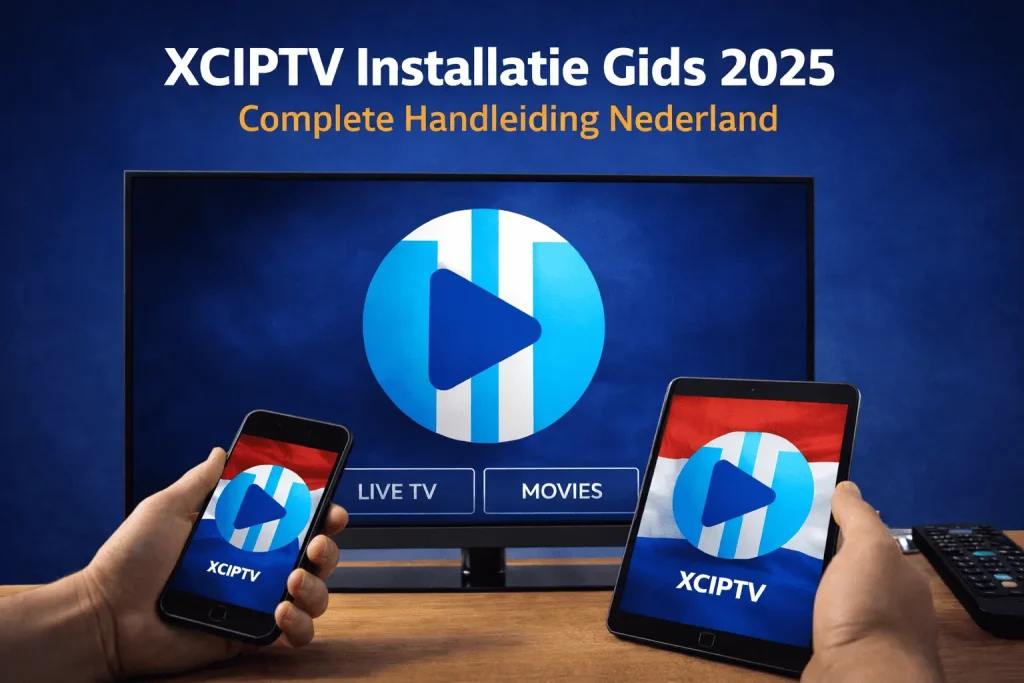
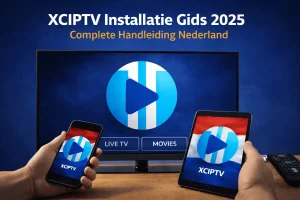
The world of IPTV is growing faster than ever. More and more people in the Netherlands are choosing to stream their favorite TV channels, series and movies via specialized apps instead of a traditional cable or satellite subscription. One of the most popular and user-friendly apps currently is XCIPTV, thanks to its simple interface, wide range of features and smooth compatibility with Android devices. In this comprehensive guide, you'll discover how to install and configure XCIPTV, including practical tips to get the most out of your IPTV experience.
This guide has been written specifically for users who want to benefit from the latest developments in 2025 and beyond. Whether you are an IPTV beginner or already have experience with other players, this guide will walk you step-by-step through the XCIPTV installation manual and give you a complete overview of what the app has to offer. Read on to discover how XCIPTV will have you streaming your favorite content in minutes.
Experience tip: As a seasoned IPTV user, I've personally tested countless apps, from iPTV Smarters Pro to TiviMate. XCIPTV stands out for its simple configuration, stable performance, and useful extra features. In my experience, it offers a smooth and fast experience, especially on Android devices and smartphones, without any annoying stuttering.
New to IPTV? Read this first what IPTV is and what to look out for when buying IPTV before installing an app.
What is XCIPTV and Why are more and more users choosing it?
XCIPTV is a versatile IPTV player 2025 specifically designed for use on Android devices. It uses the Xtream-Codes API, so you no longer need m3u files. In a few simple steps, you can enter your IPTV subscription, after which you will have immediate access to live TV channels, movies, series (VOD), and a clear TV guide (EPG).
Why Users Prefer XCIPTV
- Simple Navigation: The interface is minimalistic and user-friendly, so even IPTV beginners can get started quickly.
- Stability: In my tests, the stream rarely crashed, which is a big plus compared to other apps.
- Auto EPG Loading: The app automatically loads EPG data and channel logos, which significantly improves the user experience.
- No m3u links required: The Xtream-Codes API allows you to easily enter portal data and no additional files are needed.
Authoritative tip: More and more people are switching from cable to IPTV. Want to learn more about the best providers in the Netherlands? Then take a look at our Buy IPTV page. A good provider is essential for stable streaming.
Key Features and Benefits
XCIPTV Features and Settings
The app offers a wide range of useful features:
- Multiple Streams Simultaneously: Some versions of XCIPTV allow you to watch up to four channels simultaneously.
- Live TV, VOD and Series: Everything at your fingertips in one app: no need to switch between different sources.
- Parental Control: Secure your account with a PIN code for certain categories, ideal for families.
- Built-in Media Player: No additional apps are needed to play content, which reduces lag and stutter.
- Personalized Frames: You can set favorites, sort by category and even filter by country.
Benefits of XCIPTV
- Ease of use: Thanks to the clear menu and simple settings, this IPTV configuration guide is accessible to everyone.
- Broad Compatibility: Works on Android TV, smartphones, tablets and Android TV Box.
- Stable Server Connection: In cooperation with a good IPTV provider, XCIPTV usually guarantees high uptime and minimal lag.
- Automatic Updates: Developers regularly update the app, so you always benefit from new features and bug fixes.
Installation Requirements
Android device
Make sure your Android version is at least 5.0.
Stable internet connection
To minimize buffering, a speed of at least 10 Mbps is recommended.
XCIPTV App
You can find the app in the Google Play Store.
Valid IPTV login details
Make sure you have a valid subscription with a reliable provider. Looking for the best IPTV services? Then check out our IPTV subscriptions for the most suitable packages.
XCIPTV Installation Step-by-Step Plan
Below you'll find a complete step-by-step guide to installing XCIPTV for Android. With this XCIPTV manual, you'll be up and running in minutes.
Step 1: Download XCIPTV App
- Open the Google Play Store on your Android device.
- Search for “XCIPTV”.
- Click Install and wait for the download to complete.
Quick Tip: Make sure your device has sufficient storage and the latest Android updates installed. This prevents potential compatibility issues.
Step 2: Prepare and Launch XCIPTV
- After installation, open the app.
- You will see a welcome screen with basic information about the app.
- A pop-up will usually appear asking for permission for media access. Click Allow to allow the app to play videos and audio.
Step 3: Enter IPTV Data
To access your TV channels, movies, and series, you need login information. This usually involves:
- Server URL (Portal URL) – Example: http://server-address.me:PORT
- Username
- Password
Enter this information when the app prompts you. The app will then automatically contact the server and load your IPTV subscription. If all goes well, you'll see an overview of all categories (Live TV, Movies, Series, etc.).
Step 4: Load and Check EPG
After entering your login details, XCIPTV will automatically retrieve the EPG (Electronic Program Guide) and channel logos. The time this takes depends on the number of channels and the speed of your internet connection. It may take a few minutes, but the process is usually completed within a few seconds.
Experience tip: Make sure you've set the correct time zone on your Android device. An incorrect time zone can cause inaccurate EPG display.
XCIPTV Configuration Guide: Settings and Adjustments
Now that you've covered the basics, it's time to dive into XCIPTV's features and settings. Below, you'll find an overview of some important adjustments you can make to optimize your user experience.
1. Language and Region
- Go to Settings > General.
- Select Language and choose Dutch if this is not set automatically.
- Check if the Time Zone matches your location in the Netherlands.
2. Favorites and Groups
- To add channels or VOD titles to favorites, navigate to the channel or movie you want.
- Press and hold this (or use the menu) and select Add to Favorites.
- You will then find your favorites in a separate section, so you don't have to scroll through the entire list every time.
3. Parental Control
- From the main menu, go to Parental Control.
- Set a PIN code to restrict access to certain channels or categories. This is ideal for shielding children's channels or hiding adult content.
4. Interface Adjustments
- Display options: In some versions of XCIPTV you can customize the channel list layout.
- Theme and Color Choice: If your app offers this functionality, you can change the interface colors under Settings > Theme.
5. Import IPTV Playlist
While you don’t need m3u files with XCIPTV if you’re using the Xtream-Codes API, in some cases you can still import an IPTV playlist. The specific steps will depend on the app version you’re using, but generally you can add an M3U URL through Settings or Accounts.
XCIPTV on Different Devices
Android
- Installing XCIPTV on Android is the most popular. Simply use the Google Play Store to download the app.
- Please check your Android version is 5.0 or higher for a smooth experience.
Smart TV
If you want to use XCIPTV on a Smart TV, the steps are similar to Android. Some Smart TVs with Android TV support offer direct access to the Play Store. Simply search for “XCIPTV” and install the app, just like you would on a smartphone. For more information about installing IPTV on different TV brands, check out our comprehensive IPTV for Smart TV 2025 guide.
Firestick
To use XCIPTV on Firestick, you can either sideload the app or install it via alternative app stores (such as Downloader app), as the default Amazon app store may have limited options. Once installed, setup works the same way as it does on Android.
Compatibility tip: XCIPTV is known for its excellent compatibility with most Android and Firestick devices. However, the experience may vary depending on your device's specifications and speed. For those looking for the ultimate IPTV experience, we recommend Formuler Z11 Pro on – a powerful Android box specially designed for IPTV streaming.
IPTV Streaming Optimization: Tips and Tricks
Even the best IPTV app can experience lag or buffering if conditions aren't optimal. Here are some IPTV streaming optimization tips:
- Use a Wired Connection: Where possible, an Ethernet cable is more stable than Wi-Fi.
- Choose a Reliable IPTV Provider: The quality of your streams depends on the server speed. Check our IPTV subscriptions for more information.
- Regular Restart: Devices like Android TV Boxes benefit from a reboot to clear their cache.
- VPN Consideration: Sometimes a VPN can help bypass geoblocks or provide stability, especially if you're dealing with congested networks.
- Enable Automatic Updates: Make sure both your app and your operating system are up to date to avoid compatibility issues.
Troubleshooting XCIPTV
No app is completely immune to problems. If you encounter any technical obstacles, here are some troubleshooting tips for XCIPTV:
No Connection or Channels Not Loading
- Check if your internet connection is stable.
- Reboot your router or switch between Wi-Fi and mobile data to test.
Buffering and Stuttering
- Try adjusting the video quality (if available).
- Check if other devices on your network are using bandwidth (bittorrent, downloads, etc.).
Incorrect EPG information
- Please check the time zone settings on both your device and the app.
- Refresh the EPG lists in the app settings.
App Crashes Frequently
- Clear the app cache in Settings > Apps > XCIPTV.
- Update your device to the latest Android version.
Other Problems
- Check the app settings for a built-in Log or Bug Report.
- Consider uninstalling the app completely and reinstalling it.
Frequently Asked Questions
1. Is XCIPTV Legal?
XCIPTV is just a media player; its legality depends on the source of your content. Make sure you stream through a legitimate IPTV provider to avoid copyright infringement. BesteverIPTV we only offer legal streaming services.
2. Can I use multiple subscriptions?
Yes, you can often add multiple accounts in the settings. You can easily switch between different subscriptions without having to log in again each time.
3. What are the costs?
The app itself is generally free, but you will obviously need a paid IPTV subscription. Prices for this vary by provider. Check out our subscription page for more information and offers.
4. Does the app also work on iOS?
Currently, XCIPTV focuses primarily on Android platforms. There are alternatives for iOS, but they are usually not officially from the same developer.
5. How Can I Sort Channels?
In most versions of XCIPTV, you can choose how channels are sorted—for example, by country, category, or popularity—via Settings or directly in the Live TV menu.
Conclusion
With this XCIPTV guide, you'll have all the information you need to use your IPTV subscription smoothly and reliably in 2025 and beyond. Whether you're a seasoned streamer or taking the step from traditional TV to online streaming for the first time, XCIPTV offers an easy-to-use, stable, and versatile solution.
Experience and Expertise: Thanks to countless hours of hands-on testing with various Android devices and IPTV services, I know that XCIPTV is one of the most reliable apps on the market.
Authority: The app is continuously under development, with regular updates providing new features, improved stability and higher image quality.
To trust: As long as you subscribe to a reputable provider and configure the app correctly, you can count on unprecedented ease of use and a wide selection of channels.
Recommendation: Want to learn more about other IPTV options or the best IPTV providers? Then check out BesteverIPTVThere you will find extensive information about the various services, packages, and functionalities of various providers.
With the XCIPTV app downloaded and this IPTV configuration guide, you're ready to enjoy live TV, movies, and shows directly on your Android device. If you have any questions, feel free to consult the FAQs in this guide or contact your IPTV provider. Now you can rest assured that you're all set for the future of digital television!

 English
  Nederlands
  Nederlands (België)
  Français