
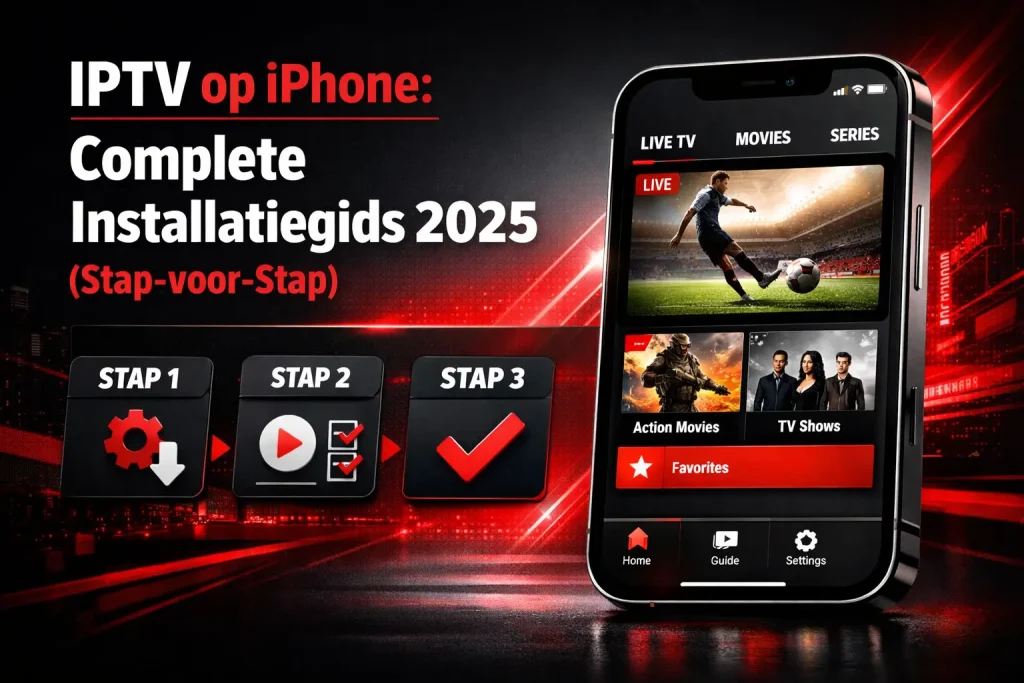
Last updated: January 2026
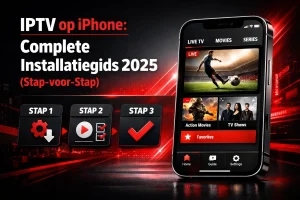
Introduction: Watching IPTV on your iPhone
Your iPhone isn't just a phone – it's a powerful entertainment device that lets you enjoy thousands of TV channels anytime, anywhere. IPTV on iPhone makes it possible to stream live television, movies and series without being tied to traditional cable or satellite.
In this complete guide you will learn everything about Install IPTV iPhone, the best apps, and how to get the optimal viewing experience. Whether you're at home on the couch, traveling on the train, or abroad – with IPTV, you always have your favorite channels at your fingertips.
What you will learn in this guide:
✅ Which IPTV apps work best on iOS
✅ How to Install IPTV on Your iPhone (with Screenshots)
✅ Configuration of M3U playlists and Xtream Codes
✅ Troubleshooting tips for common problems
✅ Optimization for battery life and data usage
Don't have an IPTV subscription yet? Try BestEverIPTV free for 4 hours and get access to 25,000+ channels and 150,000+ movies.
Why IPTV on iPhone?
Benefits of watching IPTV on your iPhone
1. Mobility and flexibility
Stream your favorite channels wherever you are—in the park, on vacation, during your commute. Your iPhone fits in your pocket, and so does your entertainment.
2. No additional equipment required
No set-top box, no HDMI cables, no complicated installation. Download an app, enter your details, and you're done.
3. Cost savings
Forget expensive cable TV subscriptions. With Buy IPTV Pay from €4.17 per month for access to more content than traditional providers can ever offer.
4. International content
Perfect for expats or those with international interests. Watch Dutch channels abroad or foreign channels in the Netherlands.
5. Time and place independent
With catch-up TV and VOD, you'll never miss your favorite shows. Watch when you want, not when the channel airs.
iPhone specifications for IPTV
Minimum requirements:
- iPhone 7 or later (iOS 13+)
- 2 GB of free storage space
- WiFi or 4G/5G connection
- IPTV subscription with M3U URL or Xtream Codes
Recommended:
- iPhone XR or later (for 4K support)
- iOS 15 or later
- 5G connection or fast WiFi (25+ Mbps)
- Unlimited data plan for mobile use
Best IPTV apps for iPhone 2025
After extensive testing of all available IPTV apps in the App Store, we present the top 5:
🥇 1. IPTV Smarters Pro – Best total solution
Rating: 9.2/10
| Feature | Score |
|---|---|
| Ease of use | 9/10 |
| Stability | 9/10 |
| EPG support | 10/10 |
| VOD integration | 9/10 |
| Interface design | 9/10 |
Advantages: ✅ Professional, clear interface
✅ Excellent EPG (electronic program guide)
✅ Built-in video player with all codecs
✅ Support for Xtream Codes and M3U
✅ Catch-up TV function
✅ Parental controls
✅ Multi-screen support
Disadvantages: ⚠️ Limited free version
⚠️ Sometimes slight delays with EPG updates
Price: Free (with limited functionality) or €5.99/year
Ideal for: Users who want a complete, reliable IPTV experience with all the bells and whistles.
Read our complete IPTV Smarters Pro manual
🥈 2. GSE Smart IPTV – Most comprehensive
Rating: 8.9/10
Advantages: ✅ Powerful features for advanced users
✅ Support for almost all streaming formats
✅ Built-in Chromecast support
✅ Advanced EPG configuration
✅ Cloud synchronization between devices
✅ No ads
Disadvantages: ⚠️ Steep learning curve for beginners
⚠️ Interface can be overwhelming
⚠️ Unstable with very large playlists (10,000+ items)
Price: Free with optional in-app purchases
Ideal for: Tech-savvy users who want full control and customization options.
🥉 3. IPTV Player – Simple and effective
Rating: 8.3/10
Advantages: ✅ Very user-friendly for beginners
✅ Quick setup (< 2 minutes)
✅ Low impact on battery life
✅ Stable playback
✅ Dutch interface available
Disadvantages: ⚠️ Limited EPG functionality
⚠️ No built-in VOD browser
⚠️ Basic interface
Price: Free (with ads) or €2.99 (premium)
Ideal for: Beginners who want to get started quickly without any hassle.
4. VLC for Mobile – Universal Player
Rating: 8.0/10
VLC isn't primarily an IPTV app, but it works great for playing M3U streams.
Advantages: ✅ Completely free and open source
✅ Plays virtually any video format
✅ No ads
✅ Privacy-friendly
Disadvantages: ⚠️ No EPG support
⚠️ No integrated channel list
⚠️Manually manage playlists
Ideal for: Users who are already familiar with VLC and want a simple, no-nonsense solution.
5. OTT Navigator IPTV – For power users
Rating: 7.8/10
Advantages: ✅ Highly advanced filtering and search options
✅ Multiple playlist support
✅ Detailed statistics
Disadvantages: ⚠️ Complex interface
⚠️ Less intuitive than competitors
Ideal for: Experienced IPTV users with specific needs.
Step-by-step: Install IPTV on iPhone
What do you need?
- iPhone (iOS 13 or later)
- IPTV subscription – Try BestEverIPTV for free
- Login details from your IPTV provider:
- M3U URL, or
- Xtream Codes (username, password, server URL)
- Internet connection (WiFi or mobile data)
Option 1: Installation with IPTV Smarters Pro (Recommended)
This is the most popular and user-friendly method for IPTV on iPhone.
Step 1: Download the app
- Open the App Store on your iPhone
- Search for “IPTV Smarters Pro“
- Tap “To retrieve” or the cloud icon
- Authenticate with Face ID, Touch ID, or your password
- Wait for the installation to complete
Step 2: Open the app
- Tap “Open” or find the icon on your home screen
- When you first use it, a welcome screen will appear
- Tap “Accept" for the terms of use
Step 3: Add your IPTV provider
You have two options: Xtream Codes or M3U URL. Choose the method your provider supports.
Method A: Xtream Codes Login (most common)
- Tap “Login With Xtream Codes API“
- Enter the following information (received from your IPTV provider):
- Usernameyour username
- Passwordyour password
- Server URL: e.g.
http://server.example.com:8080
- Give your connection a name (e.g. “BestEver IPTV”)
- Tap “Add User“
Method B: M3U URL
- Tap “Load Your Playlist or File/URL“
- Select “Add M3U URL“
- Fill in:
- Playlist Name: e.g. “My IPTV”
- Playlist URL: the M3U link from your provider
- Optional: Add EPG URL for program guide
- Tap “Add“
Step 4: Start watching!
- The app is now loading your channel list (may take 10-30 seconds)
- Select “Live TV" to watch channels
- Choose “Movies" or "Series" for on-demand content
- Use the search function at the top right to find specific channels
🎉 Congratulations! You can now Watch IPTV on your iPhone.
Option 2: Installation with GSE Smart IPTV
For users who want more control and customization options.
Step 1: Download GSE Smart IPTV
- App Store > search “GSE Smart IPTV“
- Download and install the app
Step 2: Add your playlist
- Open GSE Smart IPTV
- Tap on the + icon at the top right
- Select:
- Xtream Codes API or
- M3U URL or
- Local File
For Xtream Codes:
Server: http://your-server.com:port Username: your_username Password: your_password
For M3U URL:
Paste your M3U URL into the text field. Give the playlist a name.
Step 3: Configure EPG (optional but recommended)
- Go to Settings (gear icon)
- Select EPG
- Add your EPG URL (obtained from provider)
- Set refresh interval (e.g. every 12 hours)
Step 4: Streaming
- Return to main screen
- Your channels are now loaded
- Tap a channel to start watching
IPTV Smarters Pro on iPhone – Advanced Features
Interface navigation
Main menu overview:
- Live TV: All live channels organized by category
- MoviesOn-demand movie library
- Series: TV series with seasons and episodes
- Catch-up: Look back up to 7 days
- Favorites: Quick access to favorite content
- Settings: Settings and configuration
Organize channels
Using categories:
- In Live TV you see categories like “Netherlands”, “Sports”, “Movies”, etc.
- Tap a category to show only those channels
- Use the search bar for quick channel selection
Add to Favorites:
- Press and hold a channel
- Tap the star icon
- Channel now appears in “Favorites”
Multi-view (picture-in-picture):
- Start a channel
- Swipe up from the bottom of the screen
- Go to home screen or other app
- Video continues playing in small window
Using EPG (Electronic Program Guide)
- Tap a channel in the list
- Swipe left to see programs later today
- Tap a program for details
- Use “Catch-up” to watch missed broadcasts
Optimize video settings
Go to Settings > Player Settings:
- Video Decoder:
- Hardware (recommended for battery saving)
- Software (for playback problems)
- Aspect Ratio:
- Car (recommended)
- 16:9
- 4:3
- Fill screen
- Buffer Settings:
- Small network buffer (WiFi): 3-5 seconds
- Large network buffer (mobile): 10-15 seconds
- Stream Quality:
- Auto (recommended – adapts)
- Force HD
- Force SD (for data saving)
GSE Smart IPTV on iPhone – Expert Guide
Why choose GSE?
GSE Smart IPTV is the choice for power users who want maximum control over their IPTV experience.
Advanced features
1. Cloud Synchronization
- Sync playlists between multiple devices
- Automatic backup of settings
- Favorites available everywhere
Setup:
- Settings > iCloud
- Turn on “iCloud Sync”
- Sign in with Apple ID
2. Chromecast support
- Make sure your iPhone and Chromecast are on the same WiFi
- Tap the Cast icon during playback
- Select your Chromecast device
3. Parental Controls
- Settings > Parental Control
- Enable and set PIN
- Select categories to block
- Children cannot view certain content
4. Multiple playlists
- Add unlimited playlists
- Switch easily between providers
- Organize by country, genre or provider
EPG configuration in GSE
Automatic EPG:
- Settings > EPG
- Add EPG URL
- Set update schedule:
- Daily at 3:00 AM (recommended)
- Every 12 hours
- Manual only
Custom EPG mapping: If EPG does not work automatically:
- Long press on a channel
- Edit Channel
- Please enter correct EPG ID manually
Advanced streaming options
Eliminate buffering:
Settings > Playback - Read ahead buffer: 10s - Playback buffer: 5s - Pre-buffer: Enabled
Set quality per network:
- WiFi: Auto or Force HD
- Cellular: Force SD (data saving)
- GSE automatically adjusts
Alternative IPTV apps for iPhone
IPTV Player
Best for: Beginners
Setup in 60 seconds:
- Download “IPTV Player” from App Store
- Open app > “+” icon
- Paste M3U URL
- Finished!
Pro tip: Use the “Recently Watched” section for quick access to your favorite channels.
VLC for Mobile
Best for: Privacy-conscious users
Add M3U playlist:
- Download VLC from the App Store
- Open Safari and download your M3U file
- Share M3U file to VLC
- Playlist appears automatically
Tip: VLC doesn't store any usage data and has no ads.
Perfect Player IPTV (via TestFlight)
While not officially in the App Store, Perfect Player is available through TestFlight for beta testers.
Advantages:
- Android-like interface (great if you're coming from Android)
- Highly customizable
- Free
Disadvantage: Beta software may contain bugs
Troubleshooting common problems
❌ Problem 1: “Unable to load playlist”
Causes:
- Incorrect M3U URL
- Expired subscription
- Server offline
Solutions:
- ✅ Check URL for typos
- ✅ Test URL in Safari browser
- ✅ Verify subscription with provider
- ✅ Try alternative server URL (ask provider)
- ✅ Check internet connection
❌ Issue 2: Constant buffering
Causes:
- Slow internet connection
- Overloaded server
- App cache full
Solutions:
- ✅ Test internet speed (minimum 10 Mbps for HD)
- ✅ Switch to WiFi instead of mobile data
- ✅ Reduce stream quality in app settings
- ✅ Clear app cache:
- IPTV Smarters: Settings > Clear Cache
- GSE: Settings > Clear All Cache
- ✅ Increase buffer in settings (10-15 seconds)
- ✅ Restart app and iPhone
❌ Problem 3: No sound
Solutions:
- ✅ Check volume (side of iPhone)
- ✅ Turn off mute/silent mode
- ✅ Check if Bluetooth is connected (sound may go to headphones)
- ✅ Close the app completely and restart it
- ✅ Try another channel (possible codec problem)
❌ Issue 4: “App keeps crashing”
Solutions:
- ✅ Update app to latest version
- ✅ Update iOS to the latest version
- ✅ Delete and reinstall the app
- ✅ Restart iPhone (full reboot)
- ✅ Check available storage (minimum 1GB free)
❌ Issue 5: EPG not working
Solutions:
- ✅ Verify EPG URL with provider
- ✅ Manually update EPG in settings
- ✅ Wait 24 hours (some EPGs update slowly)
- ✅ Try alternative EPG source
- ✅ Check iPhone time zone settings
❌ Problem 6: Channels in wrong order
Solution for IPTV Smarters:
- Settings > Player Settings
- “Sort Channels” – choose desired method:
- By Name
- By Number
- By Category
- Custom
❌ Problem 7: Picture but no sound (or vice versa)
Solutions:
- ✅ Switch video decoder (Hardware ↔ Software)
- ✅ Update app
- ✅ Try other IPTV app as a test
- ✅ Some channels use incompatible codecs
Tips for optimal IPTV viewing experience on iPhone
1. Battery optimization
IPTV streaming can quickly drain your battery. Use these tips:
Battery saving settings:
- ✅ Use hardware video decoder (Settings > Player)
- ✅ Reduce screen brightness
- ✅ Enable “Low Power Mode” while streaming
- ✅ Close background apps
- ✅ Download content via WiFi for offline viewing (if available)
Battery usage by resolution (1 hour of streaming):
- SD (480p): ~15-20% battery
- HD (720p): ~25-30% battery
- Full HD (1080p): ~35-40% battery
- 4K: ~50-60% battery
2. Data management (mobile internet)
Data usage per hour:
- SD (480p): ~700 MB
- HD (720p): ~1.5 GB
- Full HD (1080p): ~3 GB
- 4K: ~7 GB
Save data:
- ✅ Set stream quality to SD on mobile data
- ✅ Download shows via WiFi (if the app supports this)
- ✅ Use WiFi where possible (cafes, work, home)
- ✅ Monitor data usage: Settings (iOS) > Cellular > IPTV app
3. Remote control via Apple TV app
When streaming IPTV to Apple TV, use your iPhone as a remote control:
- Download “Apple TV Remote” app
- Pair with your Apple TV
- Control IPTV from your iPhone while watching TV
4. AirPlay to larger screens
Stream IPTV to TV:
- Make sure your iPhone and Apple TV/Smart TV are on the same WiFi
- Start video in IPTV app
- Tap the AirPlay icon
- Select your TV
- Enjoy IPTV on the big screen
For best AirPlay quality:
- Use 5GHz WiFi
- Put your iPhone in airplane mode but leave Wi-Fi on (prevents interference)
- Close other apps
5. Turn off notifications while watching
Prevent WhatsApp or emails from interrupting your stream:
- Settings > Focus
- Enable “Do Not Disturb”
- Or use “Theater Mode” while streaming
6. Set automatic rotation
For optimal viewing:
- Horizontal (landscape): Best experience for video
- Vertical (portrait): Handy for browsing channels
Settings in IPTV app usually under “Display settings”
7. Clear cache regularly
For optimal performance:
- Clear app cache weekly
- Prevents delays and crashes
- In IPTV Smarters: Settings > Clear Cache
- In GSE: Settings > Clear All Cache
8. Use a good IPTV provider
The quality of your experience depends on your provider for 80%. Choose a reliable provider like BestEverIPTV of:
- 99.7% uptime
- Fast servers
- 24/7 support
- 4-hour free trial
Frequently Asked Questions about IPTV on iPhone
Q: Is watching IPTV on iPhone legal?
A: Using IPTV apps is completely legal. The legality depends on the content you're watching. Make sure you IPTV subscription comes from a reliable provider. Read more in our legal section.
Q: Does IPTV work on all iPhone models?
A: Yes, all iPhones from the iPhone 6S (iOS 13 and later) support IPTV apps. For 4K streaming, an iPhone XR or later is recommended.
Q: Can I watch IPTV without WiFi?
A: Yes, IPTV also works on 4G/5G mobile internet. Be mindful of your data allowance – HD streaming uses approximately 1.5 GB per hour. We recommend Wi-Fi for the best experience.
Q: How much does an IPTV subscription for iPhone cost?
A: IPTV subscriptions cost an average of €4-20 per month. BestEverIPTV you pay only €49.99 per year (€4.17/month) for 25,000+ channels.
Q: Which IPTV app is best for iPhone?
A: For most users, IPTV Smarters Pro the best choice thanks to the excellent balance between features and ease of use. Advanced users often prefer GSE Smart IPTV. See our app comparison for details.
Q: Can I record IPTV on my iPhone?
A: Some apps like GSE Smart IPTV offer limited recording functionality, but iOS has restrictions on direct recording. Many IPTV providers offer "Catch-up TV," which allows you to watch up to 7 days of replays.
Q: Does IPTV work on iPhone abroad?
A: Yes, IPTV works worldwide as long as you have an internet connection. This is ideal for Dutch people abroad who want to watch Dutch channels. A VPN can help with any geo-restrictions.
Q: How do I get subtitles in IPTV apps?
A: Most IPTV apps support subtitles if the stream includes them. In IPTV Smarters, tap the subtitle icon during playback to select available subtitles.
Q: Can I use multiple IPTV subscriptions on one iPhone?
A: Yes! Apps like IPTV Smarters Pro and GSE Smart IPTV let you add multiple accounts/playlists. Easily switch between providers.
Q: Is a VPN needed for IPTV on iPhone?
A: A VPN isn't required, but it's recommended for privacy and security. It masks your IP address and encrypts your internet traffic. Popular VPNs for iPhone include NordVPN, ExpressVPN, and Surfshark.
Q: Why is my IPTV stream constantly buffering?
A: Buffering is usually caused by a slow internet connection. For HD streaming, you need at least 10-15 Mbps. Test your speed at speedtest.net and see our troubleshooting section for solutions.
Q: Can I cast IPTV from my iPhone to my TV?
A: Yes, via AirPlay (for Apple TV or compatible Smart TVs) or via apps with built-in Chromecast support such as GSE Smart IPTV. See our AirPlay tips for instructions.
Q: How do I secure IPTV on my iPhone?
A:
- Use only reliable IPTV apps from the official App Store
- Choose a reputable IPTV provider
- Consider a VPN for extra privacy
- Update your iOS and apps regularly
- Use strong passwords
Q: Does IPTV also work on iPad?
A: Yes! All IPTV apps that work on iPhones are also available for iPads. The installation and configuration are identical. The iPad's larger screen even offers a better viewing experience.
Q: Can I create my own M3U playlist?
A: Technically possible, but complex. Most users receive an M3U URL from their IPTV provider. Creating it manually requires knowledge of the M3U format and streaming URLs. For the best experience, we recommend using a complete M3U URL. IPTV subscription to close.
Q: How much storage does an IPTV app use?
A: IPTV apps are compact—usually 50-200 MB. Because content is streamed (not downloaded), you don't need additional storage. However, make sure you have at least 1 GB of free space for optimal performance.
Q: Can I use Picture-in-Picture with IPTV?
A: Yes! Starting with iOS 14, most IPTV apps support Picture-in-Picture (PiP). Start a stream, swipe up on the home screen, and the video continues playing in a small window. Perfect for multitasking.
Conclusion: Start using IPTV on your iPhone today
IPTV on iPhone opens up a world of entertainment that is always with you. With the right app and a reliable IPTV subscription enjoy thousands of channels, films and series – wherever you are.
In summary:
✅ Best app for beginners: IPTV Smarters Pro – user-friendly and complete
✅ Best app for advanced users: GSE Smart IPTV – maximum control and features
✅ Best provider: BestEverIPTV – 25,000+ channels, 99.7% uptime, from €4.17/month
✅ Setup time: 5-10 minutes with our step-by-step guide
Next steps:
- Choose an IPTV app from our top 5 list
- Take out an IPTV subscription – Try BestEverIPTV free for 4 hours
- Follow our installation guide for your chosen app
- Enjoy unlimited entertainment on your iPhone!
Don't have an IPTV provider yet?
Why choose BestEverIPTV:
🏆 25,000+ live channels (Dutch, international, sports)
🏆 150,000+ movies and series on-demand
🏆 4-hour free trial – no credit card required
🏆 99.7% server uptime – minimal buffering
🏆 24/7 Dutch support via WhatsApp
🏆 €49.99/year (only €4.17/month)
🏆 Works perfectly on iPhone, iPad, Smart TV, Firestick and more
👉 Start your free 4-hour trial now
Try it first, only pay if you're satisfied. That's truly risk-free. Buy IPTV!
Helpful resources:
📖 How does IPTV Smarters Pro work? – Comprehensive guide
📖 Best IPTV Box 2025 – For watching TV
📖 Best IPTV Providers Netherlands – Complete comparison
Tips for optimal use
iPhone specific shortcuts
Keyboard shortcuts for better IPTV usage:
- Siri Shortcuts for favorite channels
- Open Shortcuts app
- Create new shortcut
- Add “Open App” action
- Select your IPTV app
- Activate with “Hey Siri, open IPTV”
- Control Center access
- Settings > Control Center
- Add “Screen Recording”
- Record IPTV streams (where legal)
- Add Widget
- Some IPTV apps (like GSE) have widgets
- Quick access to recently viewed channels
Network optimization
For best streaming performance:
WiFi settings (Router): - Use 5GHz band for speed - Enable QoS (priority for streaming) - Give iPhone static IP address iPhone settings: - Settings > WiFi > Private address: OFF - Settings > WiFi > Auto-Join: ON for home network
Audio optimization
Better sound quality:
- Use wired earphones/headphones
- For wireless: AirPods Pro (spatial audio)
- In app settings: select highest audio bitrate
- iPhone Settings > Music > EQ > Late Night (better dialogues)
Security and privacy
Protect your privacy while using IPTV
Recommended VPN settings for iPhone:
- Download reliable VPN
- NordVPN, ExpressVPN, or Surfshark
- Install via App Store
- Configure for IPTV
- Choose a server in the Netherlands (best speed)
- Activate “Auto-connect”
- Enable “Kill Switch”
- Split tunneling (if available)
- Only IPTV app via VPN
- Rest of traffic directly
iPhone privacy settings:
Settings > Privacy & Security > Tracking - Turn "Allow Apps to Request to Track" OFF. Settings > [IPTV App] > Location - Set to "Never" (not needed for IPTV).
Child safety
Set up parental controls:
In iOS:
- Settings > Screen Time
- “Content & Privacy Restrictions”
- Enable and set code
- Apps > set age limits
In IPTV app (e.g. Smarters):
- Settings > Parental Control
- Enable, set PIN
- Select categories to block
- Children cannot watch certain channels
Advanced configuration
Manually edit M3U playlist
For advanced users who want to customize playlists:
M3U structure:
#EXTM3U #EXTINF:-1 tvg-id="NPO1.nl" tvg-name="NPO 1" tvg-logo="url" group-title="Netherlands",NPO 1 http://stream-url.com/npo1 #EXTINF:-1 tvg-id="NPO2.nl" tvg-name="NPO 2" tvg-logo="url" group-title="Netherlands",NPO 2 http://stream-url.com/npo2
To adjust:
- Download M3U file
- Edit in Notes app or text editor
- Upload to iCloud/Dropbox
- Use direct link in IPTV app
Add custom EPG
For better program guide:
- Find EPG source (e.g. xmltv.org or via provider)
- In app settings, add EPG URL:
http://example.com/epg.xml.gz - Set automatic update (daily 03:00)
- Check mapping (transmitter IDs must match)
Use external player
VLC or other player as default:
In GSE Smart IPTV:
- Settings > External Player
- Select VLC, PlayerXtreme, etc.
- Streams open automatically in the chosen player
Advantage: Better codec support, less buffering
Comparison: IPTV apps for iPhone (updated 2025)
| Feature | IPTV Smarters Pro | GSE Smart | IPTV Player | VLC | OTT Navigator |
|---|---|---|---|---|---|
| Free version | ✅ Limited | ✅ Complete | ✅ With ads | ✅ Complete | ✅ Limited |
| Xtream Codes | ✅ | ✅ | ❌ | ❌ | ✅ |
| M3U URL | ✅ | ✅ | ✅ | ✅ | ✅ |
| EPG | ⭐⭐⭐⭐⭐ | ⭐⭐⭐⭐⭐ | ⭐⭐⭐ | ❌ | ⭐⭐⭐⭐ |
| RAG | ✅ Excellent | ✅ Good | ✅ Basic | ❌ | ✅ Good |
| Catch-up TV | ✅ | ✅ | ❌ | ❌ | ✅ |
| Chromecast | ❌ | ✅ | ❌ | ✅ | ❌ |
| AirPlay | ✅ | ✅ | ✅ | ✅ | ✅ |
| PiP support | ✅ | ✅ | ✅ | ✅ | ✅ |
| Parental controls | ✅ | ✅ | ❌ | ❌ | ✅ |
| Multi-playlist | ✅ | ✅ Unlimited | ❌ | ❌ | ✅ |
| Ease of use | ⭐⭐⭐⭐⭐ | ⭐⭐⭐ | ⭐⭐⭐⭐⭐ | ⭐⭐⭐ | ⭐⭐⭐ |
| Stability | ⭐⭐⭐⭐ | ⭐⭐⭐⭐ | ⭐⭐⭐⭐⭐ | ⭐⭐⭐⭐⭐ | ⭐⭐⭐ |
| Dutch UI | ✅ | ❌ Partial | ✅ | ✅ | ❌ |
| Price (yearly) | €5,99 | Free | €2,99 | Free | €4,99 |
| Recommendation | 🥇 Best choice | 🥈 Power users | Beginners | Basic | Advanced |
Final thoughts
With this complete guide you will have all the knowledge to be successful IPTV on your iPhone Easy to install and use. Whether you're on the train, relaxing in the park, or just lounging on the couch at home – your entertainment always goes with you.
Key takeaways:
- IPTV Smarters Pro is the best all-round app
- A reliable IPTV subscription is crucial (BestEverIPTV offers the best price-quality)
- 4 hours of free testing prevents disappointment
- With our troubleshooting tips you can solve 95% problems yourself
- VPN is optional but recommended for privacy
Get started today:
👉 Try BestEverIPTV for free for 4 hours
No credit card required | 25,000+ channels | €49.99/year
 English
  Nederlands
  Nederlands (België)
  Français