
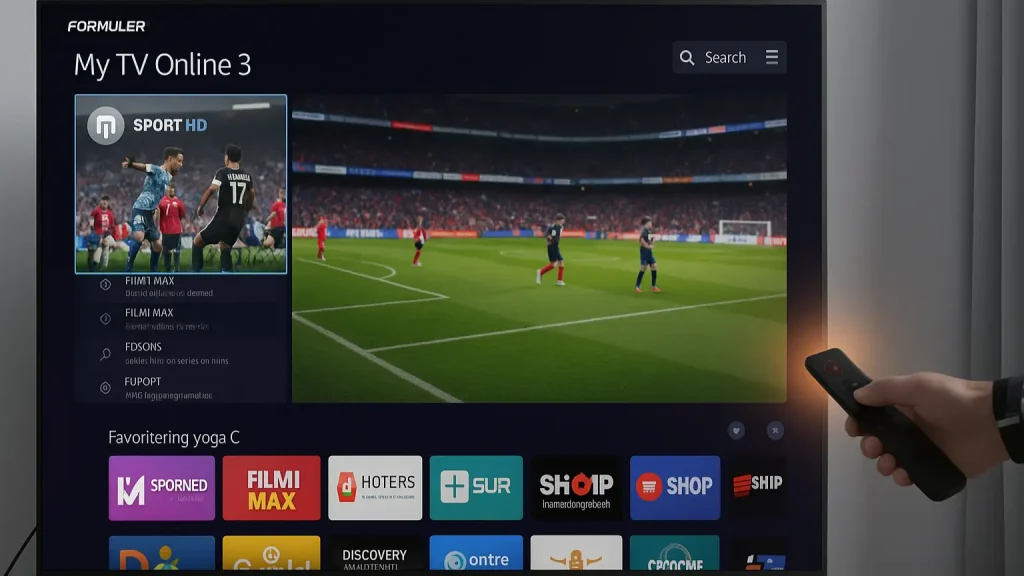
Why the Formuler Z11 Pro is Perfect for IPTV
The way we watch television has fundamentally changed. By 2025, serious IPTV viewers will have discovered that not all devices are created equal. While smart TV apps and budget Android boxes often disappoint with buffering and crashes, the Formuler Z11 Pro has proven itself as the absolute top choice for reliable, professional IPTV streaming.
If you are considering getting a IPTV subscription If you're looking for the best hardware to run it on, the Formuler Z11 Pro is probably the most complete solution you can find. This specialized IPTV box isn't just a generic media player – it's a premium device designed specifically for one purpose: delivering the perfect IPTV experience.
In this complete guide you will learn everything about the Formuler Z11 Pro: from the first installation to advanced features, and of course how to combine it with BesteverIPTV for the ultimate viewing experience with 25,000+ channels from the Netherlands, Belgium, Turkey and Morocco.
What Makes the Formuler Z11 Pro Unique?
The IPTV box market is saturated with hundreds of options, but the Formuler Z11 Pro stands out with a unique combination of powerful hardware and exclusive software that you won't find anywhere else.
My TV Online 3: The Game Changer
The biggest difference between the Formuler Z11 Pro and other IPTV boxes lies in the software. While most boxes rely on generic apps like IPTV Smarters or TiviMate, the Formuler comes with its own exclusive platform: My TV Online 3 (MOL3).
My TV Online 3 isn't just a simple IPTV player – it's a complete ecosystem built around the perfect viewing experience:
Integrated Platform
- Live TV, EPG, Video on Demand and Series in one interface
- No need to switch between different apps
- Everything optimized for speed and stability
Multi-Provider Support
- Add multiple IPTV subscriptions in one app
- Switch seamlessly between different services
- Ideal if you combine BesteverIPTV with other content
Intelligent Search Function
- Search through 25,000+ channels in seconds
- Real-time search through VOD library
- Universal search across all added services
Backup & Restore Functionality
- Export your complete settings
- Save favorites and customizations
- Easy recovery after reset or on new box
User-friendly interface
- Intuitive navigation for beginners
- Advanced options for power users
- Dutch interface support
This exclusive software is why many IPTV experts consider the Formuler Z11 Pro to be the best IPTV box you can buy – even if you find better hardware specs from competitors, the software experience is unparalleled.
Premium Hardware for Flawless Streaming
Good software needs powerful hardware, and that's what the Formuler Z11 Pro delivers:
Realtek RTD1319 Chipset
- Powerful quad-core processor
- Optimized for 4K video decoding
- No lag in menu navigation
- Fast EPG loading (even with 25,000+ channels)
2GB DDR4 RAM
- Sufficient memory for heavy use
- Multi-tasking without delays
- No crashes with large EPG data
16GB Internal Storage
- Space for apps and cache
- Android 11 operating system
- Regular firmware updates
4K & HDR10+ Support
- Maximum image quality for compatible content
- 60 fps for smooth sports and action
- Vibrant colours and deep contrasts
AV1 Hardware Decoding
- Latest video codec support
- More efficient use of bandwidth
- Future-proof for new streams
Connectivity: The Key to Stable IPTV
The number one cause of buffering on IPTV is a poor network connection. Formuler has taken this problem seriously:
Gigabit Ethernet (1000 Mbps)
- Maximum stability for IPTV streaming
- Perfect for fiber optic connections
- No packet loss or jitter
- Always the recommended option for 4K streams
WiFi 6 (802.11ax)
- Latest wireless standard
- Faster speeds than WiFi 5
- Less interference in busy networks
- Dual-band: 2.4 GHz and 5 GHz
Bluetooth 5.0
- Wireless keyboards and mice
- Bluetooth headphones for silent viewing
- Game controllers for Android games
With these premium connectivity options, the Formuler Z11 Pro is built for the most demanding IPTV users who won’t accept any compromises when it comes to reliability.
BesteverIPTV on Formular Z11 Pro: The Perfect Match
The combination of BesteverIPTV and the Formuler Z11 Pro delivers an unparalleled viewing experience. Here's why these two are a perfect match:
Why BesteverIPTV is Ideal for Formuler
Optimized Streams
- Servers optimized for Formuler hardware
- Multiple bitrate options for different connections
- Minimal latency thanks to Dutch servers
Extensive Content Library
- 25,000+ live channels perfect for MOL3
- Dutch, Belgian, Turkish, Moroccan channels
- Complete EPG data for all channels
- VOD library with 10,000+ movies and series
Reliable Service
- 99.9% uptime guarantee
- 24/7 Dutch customer service
- Fast support for technical questions
- Regular playlist updates
Formular-Friendly Configuration
- Portal URL support (most stable method)
- M3U playlist available as an alternative
- Xtream Codes API fully supported
- Clear setup instructions
BesteverIPTV Subscriptions For Formuler Users
As a Formuler Z11 Pro owner, you're already investing in premium hardware. Why settle for an inferior IPTV service? BesteverIPTV offers the quality that suits your device:
| Duration | Price | Per month | Perfect For |
|---|---|---|---|
| 3 months | €19,99 | €6,66 | Trying and testing |
| 6 months | €29,99 | €5,00 | Six months of worry-free viewing |
| 12 months | €49,99 | €4,17 | Best deal! Enjoy all year round |
What Do You Get With BesteverIPTV?
✅ Complete Channel Packages
- All Dutch channels (NPO, RTL, SBS, regional broadcasters)
- Belgian TV (Flemish & Walloon)
- Turkish television (TRT, ATV, Show TV, Star TV)
- Moroccan channels
- International sports channels (Sky Sports, beIN Sports, ESPN)
✅ Premium Features for Formuler
- Full EPG (7 days ahead)
- Catch-up TV (watch up to 7 days)
- VOD with the latest movies and series
- 4K streams where available
- Multiple audio tracks and subtitles
✅ Reliable Infrastructure
- Multiple backup servers
- Load balancing for optimal performance
- Anti-freeze technology
- No blackouts during prime time
✅ Support & Service
- 24/7 Dutch customer service
- Formular-specific setup help
- Troubleshooting within 1 hour
- Extensive knowledge base
Installing Formuler Z11 Pro: Step-by-Step
The beauty of the Formuler Z11 Pro is that despite all its advanced features, setup is surprisingly simple. Follow these steps for a perfect configuration.
What You Need
Before you begin, make sure you have the following on hand:
Hardware:
- Formuler Z11 Pro box with remote control
- HDMI cable (usually included)
- Power adapter
- TV with free HDMI port
- Ethernet cable (highly recommended)
Internet & Services:
- Stable internet connection (minimum 15 Mbps for HD, 25+ for 4K)
- BesteverIPTV subscription with login details
- After ordering you will receive:
- Portal URL (for MOL3 portal method)
- M3U Playlist URL (alternative method)
- Xtream Codes data (username, password, server)
First Startup and Basic Setup
Step 1: Connecting Hardware
- Connect the Formuler Z11 Pro to your TV via HDMI
- Connect the Ethernet cable (or use WiFi via setup)
- Plug the power adapter into a wall socket
- Set TV to the correct HDMI input
- Box starts automatically
Step 2: Language and Basic Settings
The Formular guides you through the initial setup:
- Select language: Choose Dutch for Dutch menus
- Keyboard layout: QWERTY Dutch
- Time zone: Europe/Amsterdam (important for correct EPG times)
Step 3: Set up network connection
- Ethernet (recommended): Automatically detected and configured
- WiFi setup:
- Select your network name from the list
- Enter WiFi password
- Preferably choose 5 GHz network for better performance
Step 4: Critical Firmware Update
YOU CANNOT SKIP THIS!
Before you continue you need to update the firmware:
- Go to Institutions (Settings icon)
- Select System → About → System updates
- Click on Check for updates
- Available as update: install this
- Box will reboot (may take 5-10 minutes)
- Wait until update is fully complete
Newer firmware includes:
- Improvements for My TV Online 3
- Bug fixes and stability improvements
- New features and optimizations
- Security updates for Android
Configure BesteverIPTV in My TV Online 3
Now comes the most important part: activating your IPTV subscription in Formuler.
Step 5: Open My TV Online 3
- Go back to the main screen
- Open the My TV Online 3 app (large icon visible)
- First boot may take some time
Step 6: Add IPTV Connection
You have two main methods to add BesteverIPTV:
Method A: Portal/MAC Address (RECOMMENDED for Formuler)
This method is the most stable and offers the best performance on Formuler:
1. Select “Add Portal”
- Click on the + icon or “Add Server”
- Choose Portal or Stalker Portal
2. Fill in details
- Name: BesteverIPTV (or your own name)
- Portal URL: [The portal URL from your BesteverIPTV email]
- MAC Address: [Your unique MAC address if required]
3. Save and Load
- Click on Save or Connect
- My TV Online 3 connects to BesteverIPTV servers
- Channels, EPG and VOD are loading
- This may take 2-5 minutes the first time
Method B: M3U Playlist
If your provider only offers M3U, or you prefer this method:
1. Select “Add Playlist”
- Click on the + icon
- Choose M3U Playlist or External Playlist
2. Configure Playlist
- Name: BesteverIPTV
- Playlist URL: [Full M3U URL from email]
- Usually starts with
http://orhttps:// - Copy exactly, including all characters
- Usually starts with
- EPG URL: [If provided separately]
3. Set Update Interval
- Set to daily or twice a day
- Provides up-to-date channel list and EPG
Step 7: First Use
After successful connection:
- Live TV: See all 25,000+ channels sorted by country/category
- EPG: Electronic program guide loads automatically
- RAG: Movies and series library is available
- Series: TV series with seasons and episodes
Pro Tip: The EPG may be incomplete upon initial use. Give the system 24 hours to fully synchronize all EPG data for the best overview.
Advanced Formuler Z11 Pro Features Use
Now that your basic setup is complete, it's time to explore the Formuler's powerful features that will take your viewing experience to the next level.
Timeshift and Recording (PVR Functionality)
One of the most valuable features of the Formuler Z11 Pro is the ability to pause live TV and record programs.
External Storage Required
For PVR functions you need external storage:
USB Flash Drive (64GB+)
- Minimum USB 3.0 for reliability
- Format as FAT32 or EXT4
- Speed: Class 10 or higher
External HDD (500GB – 2TB)
- USB 3.0 connection
- For long term recordings
- Better performance than flash drive
NAS (Network Attached Storage)
- Advanced option for lots of storage
- Accessible via network
- Configuration in MOL3 settings
Setup Process:
- Connect USB device to USB 3.0 port (blue gate)
- Go to My TV Online 3 → Institutions
- Select Storage or Storage
- Select your connected device
- Format if necessary (note: this will erase all data!)
- System automatically activates Timeshift and Recording
Using Timeshift:
- While watching live TV: Press Break knob
- Stream is automatically recorded in background
- Usage Play to look further
- Rewind with Rewind buttons
- Timeshift buffer: storage space dependent
Recording Programs:
Via EPG (Program Guide):
- Open EPG (green button on remote control)
- Navigate to desired program (current or future)
- Press Record button (red button or OK → Record)
- Confirm recording
- Formular automatically records at the set time
Direct Recording:
- During live TV: press Record knob
- Recording starts immediately
- Stop recording with Stop knob
Manage Recordings:
- Go to Recordings in My TV Online 3
- See all your recorded content
- Delete old recordings to free up space
- Sort by date, name, or size
Combine Multiple IPTV Services
A unique strength of My TV Online 3 is that you can add multiple IPTV providers:
Why Multiple Services?
- BesteverIPTV for Dutch/Belgian/Turkish/Moroccan content
- Additional service for specific sporting events
- Compare test services
- Backup during server maintenance
Add:
- In My TV Online 3: click on + icon
- Add second provider (same process as first)
- Provide clear names (e.g. “BesteverIPTV” and “Sport Extra”)
Switching Between Services:
- Press Menu knob
- Select active provider from list
- Instant switch without closing the app
Organize Favorites and Channel Lists
With 25,000+ channels, organization is key:
Favorites:
- Navigate to a channel
- Press Favorite button (usually star icon)
- Channel is added to “My Favorites”
- Quick access via Favorites category
Custom Channel Groups:
- Create custom categories (Sports, News, Movies, etc.)
- Drag and drop channels to groups
- Rename groups to your preference
Hide Channels:
- Hide channels you never watch
- Cleaner interface
- Faster zapping through relevant channels
Backup:
- Go to My TV Online 3 → Institutions
- Select Backup/Restore
- Click on Create Backup
- File is saved to USB or internal
- Restore on another Formular or after reset
Optimize Image and Sound
To get the most out of your 4K TV and sound system:
Display Settings:
- Go to Android Settings (not MOL3)
- Display & Sound → Resolution
- Select highest supported resolution:
- 3840×2160 @ 60Hz (4K)
- 1920×1080 @ 60Hz (Full HD)
- HDR Mode: Enable (if TV supports)
- Color Space: Auto or RGB (depending on TV)
Audio Configuration:
- Android Settings → Display & Sound → Audio
- Digital Audio Output:
- Dolby Digital (for soundbar/home cinema)
- PCM Stereo (for TV speakers)
- Volume Mode: Car
- Audio Delay: Adjust if lip-sync issues
My TV Online 3 Video Settings:
- Open MOL3 → Institutions → Player
- Hardware Acceleration: Enable (better performance)
- Deinterlacing: Car
- Audio/Video Sync: Adjust if necessary
Parent Control
Protect children from inappropriate content:
- My TV Online 3 → Institutions → Parental Control
- Enable function
- Set PIN code (4 digits)
- Select content ratings to block
- Channels/content now require PIN to view
Troubleshooting: Solving Problems
Even with premium hardware, issues can sometimes arise. Here are solutions to the most common problems.
Problem 1: Buffering and Stuttering
Symptoms:
- Video stops frequently
- Pixelation in image
- Audio drops out
- “Loading” message appears often
Causes and Solutions:
A. Internet Connection
✅ Test your speed on speedtest.net
- Required: 15 Mbps for HD, 25+ for 4K
- Not enough? Contact your internet provider
✅ Switch to Ethernet
- WiFi is inherently less stable
- Cable provides consistent speed
- No interference from other devices
✅ Optimize WiFi (if cable is not an option)
- Use 5 GHz band instead of 2.4 GHz
- Place router closer to Formuler
- Remove obstacles between router and box
- Avoid interference (microwaves, other WiFi networks)
B. Formuler Box Performance
✅ Clear Cache
- Android Settings → Apps
- Select My TV Online 3
- Clear Cache (not Clear Data!)
- Restart box
✅ Reboot Box
- Simple restart fixes a lot
- Disconnect power for 30 seconds
- Or via menu: Institutions → Reboot
✅ Close Background Apps
- Android apps sometimes keep running
- Use Task Manager to close
- More resources for MOL3
C. Server Issues
✅ Test BesteverIPTV Status
- Try another channel from the same provider
- Not working at all? Possibly server maintenance.
- Check other device (phone/tablet)
✅ Switch Server (if multiple available)
- Some providers have backup servers
- Configure in My TV Online 3
✅ Contact BesteverIPTV Support
- Available 24/7 via chat
- Can identify server-side issues
- Get real-time status updates
Issue 2: EPG (Program Guide) Not Loading
Symptoms:
- No program information visible
- Blank EPG screen
- Old data (not current)
Solutions:
✅ Force EPG Update
- My TV Online 3 → Institutions
- EPG Settings
- Update EPG Now
- Wait 5-10 minutes
✅ Check EPG URL
- Verify correct EPG link in playlist settings
- BesteverIPTV automatically delivers EPG via portal
- With M3U: can be configured separately
✅ Time Zone Correction
- Android Settings → Date & Time
- Automatic Time Zone: Enable
- Or manually: Europe/Amsterdam
✅ Wait 24 Hours
- First EPG sync may take up to 24 hours
- Full data loads in phases
- Patience is key in new setup
Problem 3: My TV Online 3 Crashes
Symptoms:
- App closes unexpectedly
- Return to Android home screen
- “App stopped” message
Solutions:
✅ Update My TV Online 3
- Open Formuler Market or Google Play Store
- Search My TV Online 3
- Update to the latest version
✅ Clear App Data (last option)
- Android Settings → Apps → My TV Online 3
- Clear Data (clear settings!)
- Restart box
- Reconfigure BesteverIPTV
✅ Factory Reset (nuclear option)
- Last resort for persistent problems
- Institutions → System → Factory Reset
- ⚠️ Erases EVERYTHING – Backup first!
Problem 4: No Sound
Symptoms:
- Image works perfectly
- No audio output
- Sound cuts out while watching
Solutions:
✅ Check Basic
- TV volume not on mute
- Formula volume not at 0
- Correct HDMI input selected
✅ Audio Output Settings
- Android Settings → Display & Sound
- Audio Output: Switch between Dolby/PCM
- Try both options
✅ HDMI Troubleshooting
- Use another HDMI cable
- Try another HDMI port on TV
- Disconnect and reconnect cable
✅ Audio Track Selection
- Some streams have multiple audio tracks
- Press Audio button during playback
- Select alternative track
Issue 5: 4K Content Doesn't Play Smoothly
Symptoms:
- 4K streams stutter
- Frame drops
- Lower resolution than expected
Solutions:
✅ Verify 4K Capable TV
- Not all HDMI ports support 4K
- Use HDMI 2.0 or 2.1 port
- Check TV specifications
✅ Enable HDMI 2.0 Mode
- Some TVs require manual enable
- TV settings → HDMI Enhanced/UHD Color
- Enable for used HDMI port
✅ Internet Speed
- 4K requires at least 25-30 Mbps
- Test speed during stream
- Upgrade internet if necessary
✅ Hardware Acceleration
- MOL3 → Settings → Player
- Hardware Acceleration: Enable
Formuler Z11 Pro vs Alternatives
Why choose the Formuler Z11 Pro when there are so many other options? Here's a fair comparison:
Formular Z11 Pro vs Generic Android Box
| Aspect | Formuler Z11 Pro | Generic Android Box |
|---|---|---|
| Price | €150-180 | €40-80 |
| My TV Online 3 | ✅ Exclusive | ❌ Not available |
| IPTV Stability | ✅ Excellent | ⚠️ Variable |
| Firmware Updates | ✅ Regularly | ❌ Rarely/Never |
| Build Quality | ✅ Premium | ❌ Budget |
| Support | ✅ Dedicated | ❌ Minimum |
| Lifespan | 5+ years | 1-2 years |
Verdict: The Formuler is more expensive, but the investment pays for itself in reliability and user experience. For serious IPTV viewers, it's worth it.
Formuler Z11 Pro vs MAG Box
| Aspect | Formuler Z11 Pro | MAG 322/324/425 |
|---|---|---|
| OS | Android 11 | Linux |
| Apps | ✅ Play Store access | ❌ Limited to IPTV |
| Interface | My TV Online 3 | MAG Portal |
| Netflix/Streaming | ✅ Possible | ❌ Not possible |
| Flexibility | ✅ High | ❌ Low |
| IPTV Quality | ✅ Excellent | ✅ Excellent |
Verdict: Both are top-tier IPTV providers, but Formuler offers more versatility. MAG is purely IPTV-focused.
Formular Z11 Pro vs Fire TV Stick 4K
| Aspect | Formuler Z11 Pro | Fire TV Stick 4K |
|---|---|---|
| Price | €150-180 | €60 |
| Portability | ❌ Desktop box | ✅ Small & portable |
| IPTV Performance | ✅ Superior | ⚠️ Good |
| Ethernet | ✅ Gigabit | ⚠️ Via adapter |
| Cooling | ✅ Active | ❌ Passive |
| Power | ✅ Much more powerful | ❌ Limited |
Verdict: Fire Stick is perfect for casual IPTV, but Formuler is the choice for daily drivers who want maximum performance.
Extra Features and Optimizations
Install Android Apps
The Formuler Z11 Pro is a full-fledged Android box, meaning you have access to much more than just IPTV:
Google Play Store:
- Netflix, Disney+, Amazon Prime Video
- YouTube, Twitch
- Spotify, Deezer
- Games and utilities
Formuler Market:
- Curated app selection
- Optimized for Formuler hardware
- Safe and virus-free
Sideloading Apps:
- Install APK files via USB
- Use File Manager apps
- Advanced users only
Remote Control Programming
The Formuler remote control has IR Learning function:
TV Control Setup:
- Settings → Remote Control → IR Learning
- Select function (Power, Volume, Input)
- Point both remotes at each other
- Press button on TV remote
- Formuler remote learns the signal
- Repeat for all functions
Advantage:
- Control TV and Formular with one remote
- Fewer remotes on your coffee table
- No switching between devices
Using VPN for Privacy
For extra privacy and access to geo-restricted content:
VPN Apps for Formuler:
- NordVPN
- ExpressVPN
- Surfshark
- Private Internet Access
Setup:
- Download VPN app from Play Store
- Log in with your VPN account
- Connect to desired server
- All your traffic now goes through VPN
- Start My TV Online 3
NB: VPN can slow you down. Try different servers for best performance.
Frequently Asked Questions about Formuler Z11 Pro with IPTV
❓ Is the Formuler Z11 Pro worth the investment?
For serious IPTV viewers: absolutely yes. The combination of My TV Online 3 software and powerful hardware delivers an experience that generic Android boxes can't match. If you watch IPTV daily and value stability and ease of use, the investment will pay for itself in months of avoided frustration.
❓ Does BesteverIPTV work well on the Formuler Z11 Pro?
Yes, excellent. BesteverIPTV is optimized for use with premium IPTV boxes like Formuler. You get:
- Full Portal URL support
- Complete EPG for all 25,000+ channels
- 4K streams where available
- Minimal latency thanks to Dutch servers
- 24/7 support who is familiar with Formular hardware
❓ Can I watch Netflix and YouTube on the Formuler?
Yes, without any problems. The Formuler Z11 Pro has:
- Widevine L1 certification (required for HD Netflix)
- Google Play Store access
- Sufficient hardware for 4K Netflix
- YouTube app pre-installed
You can switch between IPTV (via MOL3) and streaming apps (Netflix, etc.) on the same device.
❓ How long do Formuler boxes last?
With proper maintenance and regular firmware updates: 5-7 years easily. Formuler has a proven track record of long-term support. Older models (Z7+, Z8) still receive updates years after release.
❓ What if my IPTV provider doesn't have a Portal URL?
No problem. My TV Online 3 supports multiple methods:
- M3U Playlist URL (most common)
- Xtream Codes API
- Local M3U files via USB
If your provider offers M3U (which BesteverIPTV does), it works perfectly on Formuler.
❓ Can I make recordings without external storage?
No, external USB storage is required for:
- Timeshift (pause live TV)
- Recording (making recordings)
- Catch-up buffer
Minimum recommended: 64GB USB 3.0 flash drive. For heavy recording: 500GB+ external HDD.
❓ Do I need to be technically savvy to use the Formuler?
No, the setup is surprisingly user-friendly. If you follow this guide, you'll be done in 15-20 minutes. My TV Online 3 has an intuitive interface that's much easier than most Android IPTV apps.
For more complex features (VPN, sideloading) some technical knowledge is useful, but not necessary for daily IPTV viewing.
❓ Which internet subscription do I need?
For optimal experience:
- HD streams: minimum 15-20 Mbps
- 4K streams: minimum 30-35 Mbps
- Multiple simultaneous streams: 50+ Mbps
Connection type more important than speed:
- Fiber optic: Ideal, very stable
- Cable: Good, usually sufficient
- DSL: Works, but check speed
- 4G/5G: Possible, but pay attention to data cap
❓ What happens if Formuler stops supporting?
Highly unlikely in the short term – Formuler is an established player with a long track record. If this ever happens:
- Box continues to work with the latest firmware
- My TV Online 3 remains functional
- Android apps remain installable
- Community support likely available
Your investment is protected.
Conclusion: The Ultimate IPTV Setup
The Formuler Z11 Pro combined with BesteverIPTV delivers what we consider the best IPTV experience currently available in the Netherlands. This combination offers:
Why This Is The Best Setup
✅ Hardware Excellence
- Powerful Realtek chipset without compromises
- Gigabit Ethernet for maximum stability
- 4K HDR10+ for best picture quality
- WiFi 6 for modern wireless networks
✅ Software Superiority
- My TV Online 3: Best IPTV interface available
- Android 11 for flexibility
- Regular updates and support
- Intuitive and user-friendly
✅ Content Abundance
- BesteverIPTV: 25,000+ channels
- Dutch, Belgian, Turkish, Moroccan TV
- Complete EPG and VOD library
- International sports and entertainment
✅ Reliability
- 99.9% uptime from BesteverIPTV servers
- Stable Formuler hardware
- 24/7 Dutch support
- Proven combination
✅ Value for Money
- BesteverIPTV: from €4.17/month (for 12 months)
- Formular: one-time investment €150-180
- Total cost: much lower than cable TV
- Superior experience vs. traditional TV
Your Next Steps
1. Provide Hardware
- Buy Formuler Z11 Pro at a reliable retailer
- Check that all accessories are included
- Prepare your home network (lay out Ethernet cables)
2. Choose Your BesteverIPTV Subscription
- Visit BesteverIPTV prices page
- Recommended: 12 months for the best price (€49.99)
- Receive your login details immediately by email
- Portal URL for optimal Formuler performance
3. Follow This Setup Guide
- Bookmark this page for reference
- Follow step-by-step instructions
- Use the troubleshooting section for issues
- Contact BesteverIPTV support if you have any questions
4. Optimize & Enjoy
- Update firmware regularly
- Organize your favorites
- Discover advanced features
- Enjoy 25,000+ channels
Special Tips for New Formula Owners
🎯 Week 1: Learn the basics
- Focus on navigation in My TV Online 3
- Find your favorite channels
- Create first favorites list
- Test different video settings
🎯 Week 2: Optimize
- Fine-tune picture and sound settings
- Configure parental controls if needed
- Install additional apps (Netflix, YouTube)
- Setup remote control for TV control
🎯 Week 3: Advanced Features
- Try timeshift functionality
- Make your first recordings via EPG
- Experiment with multiple IPTV providers
- Backup your settings
🎯 Month 2+: Master Status
- You know all the shortcuts and hotkeys
- Favorites perfectly organized
- All features used and understood
- Formula is an essential part of your entertainment
Useful Links
📺 BesteverIPTV Subscriptions 📖 Complete IPTV Installation Guide 📝 More IPTV Tips & Articles 🏠 Back to Homepage
BesteverIPTV + Formular Z11 Pro = The Ultimate IPTV Experience
25,000+ channels | HD & 4K quality | My TV Online 3 | 24/7 support | From €19.99
Ready to experience the best IPTV in the Netherlands? Start today! 📺✨
 English
 Nederlands
 Nederlands (België)
 Français