
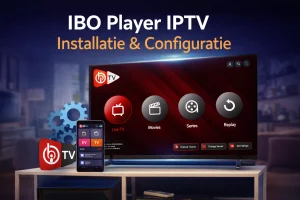
There are dozens of apps available in the world of IPTV streaming, but few are as user-friendly and powerful as IBO Player Pro. Whether you're just getting started with IPTV or looking for a reliable replacement for your current app, this comprehensive guide explains exactly how to install, configure, and optimize IBO Player Pro for the best viewing experience.
IBO Player Pro has proven itself as one of the most stable and feature-rich IPTV apps for 2025. The app works on virtually every platform—from your smartphone to smart TV—and offers an intuitive interface that both beginners and advanced users appreciate. When you combine IBO Player Pro with a premium IPTV service like BesteverIPTV, you get access to 25,000+ channels and 150,000+ movies and series with minimal buffering and maximum reliability.
In this comprehensive beginners guide you will learn:
✅ What exactly is IBO Player Pro and why it is the best choice ✅ Step-by-step installation on all devices (Android, iOS, Smart TV, Fire Stick) ✅ How to configure BesteverIPTV in IBO Player Pro ✅ Using advanced features (EPG, favorites, recordings, parental controls) ✅ Troubleshooting and optimization tips ✅ Answers to frequently asked questions
Let's start with the basics.
What is IBO Player Pro?
IBO Player Pro is a premium IPTV player application designed for playing live television, movies, series, and other video content via IPTV streams. Unlike free alternatives, the Pro version offers an ad-free experience with advanced features that take your viewing experience to the next level.
The History of IBO Player
IBO Player was originally developed by a team of IPTV enthusiasts frustrated by the limitations and instability of existing apps. Their goal was simple: create an IPTV player that simply works, without hassles, crashes, or unnecessary complexity.
Since its launch in 2019, IBO Player has become one of the most downloaded IPTV apps worldwide, with millions of active users. The Pro version, launched in 2021, offers additional functionality for users who want to get the most out of their IPTV experience.
IBO Player vs IBO Player Pro: What's the Difference?
Many people wonder if upgrading to Pro is worth it. Here's a fair comparison:
| Feature | IBO Player (Free) | IBO Player Pro |
|---|---|---|
| Price | Free | One-time €5.99 – €9.99 |
| Advertisements | ❌ Yes, regularly | ✅ Completely ad-free |
| EPG (Program Guide) | ⚠️ Basic functionality | ✅ Extended with 7 days in advance |
| Parental Controls | ❌ Not available | ✅ PIN code protection |
| Multiple Playlists | ⚠️ Max 2 playlists | ✅ Unlimited playlists |
| Catch-up TV | ❌ Not supported | ✅ Look back up to 7 days |
| External Player | ⚠️ Limited options | ✅ All Players (VLC, MX Player) |
| Timeshift | ❌ Not available | ✅ Pause live TV |
| Cloud Backup | ❌ No backup | ✅ Settings backup in cloud |
| Updates | ⚠️ Basic updates | ✅ Priority updates & support |
| Competing Streams | 1 device at a time | Up to 3 devices simultaneously |
Verdict: For casual users who watch IPTV occasionally, the free version is sufficient. For daily users who value stability and extra features, the Pro version is definitely worth the investment – especially if you use BesteverIPTV with its 25,000+ channels.
Why IBO Player Pro is the Best IPTV App for 2025
The IPTV app market is saturated with options: IPTV Smarters, TiviMate, GSE Smart IPTV, Perfect Player, and dozens more. What makes IBO Player Pro so special?
1. Universal Compatibility
IBO Player Pro works on virtually any device:
- 📱 Android smartphones and tablets (Android 5.0+)
- 🍎 iOS (iPhone and iPad) (iOS 12.0+)
- 📺 Android TV and Smart TVs (Samsung, LG, Sony)
- 🔥 Amazon Fire TV Stick (all generations)
- 🖥️ Android TV boxes (Formula, MAG, generic boxes)
- 💻 Windows PC (via Android emulator)
This flexibility means you get the same familiar interface no matter which device you use.
2. Intuitive User Interface
Where many IPTV apps overwhelm users with complex menus and unclear options, IBO Player Pro keeps it simple:
- Clear navigation: Everything can be found within 2-3 clicks
- Customizable interface: Choose your own color scheme and layout
- Dutch language support: Full translation available
- Visual channel list: Transmitter logos for quick recognition
- Quick Search: Find any channel in seconds
3. Superior Performance and Stability
This is where IBO Player Pro really shines:
- Optimal buffering: Adaptive bitrate streaming prevents stuttering
- Fast channel switching: No delay when zapping
- Crash-free experience: Even with 25,000+ channels the app remains stable
- Low resource usage: Works smoothly on older devices
- Automatic reconnect: In case of short internet drops, the stream automatically recovers
4. Advanced Features for Power Users
For users who want more than just watching:
- Multi-view mode: Watch up to 4 channels simultaneously
- Picture-in-Picture: Watch TV while using other apps
- Recording function: Record programs (with external storage)
- Series tracking: Keep track of which episodes you've seen
- Favorite groups: Organize channels to your preference
- EPG integration: See what's on TV now and next
5. Privacy and Security
IBO Player Pro takes privacy seriously:
- No data logging of your viewing behavior
- No information shared with third parties
- Optional VPN integration
- No unnecessary permissions required
Who is IBO Player Pro Right For?
✅ Perfect for:
- IPTV beginners looking for a user-friendly app
- Families using multiple devices
- Users of BesteverIPTV or other M3U providers
- People who value stability
- Power users who want advanced features
- Anyone who wants to watch without ads
⚠️ Less suitable for:
- People who only want free (then use free version)
- Users who only have Portal/MAC addresses (consider My TV Online)
- People with very old devices (Android <5.0)
Installing IBO Player Pro: Platform by Platform
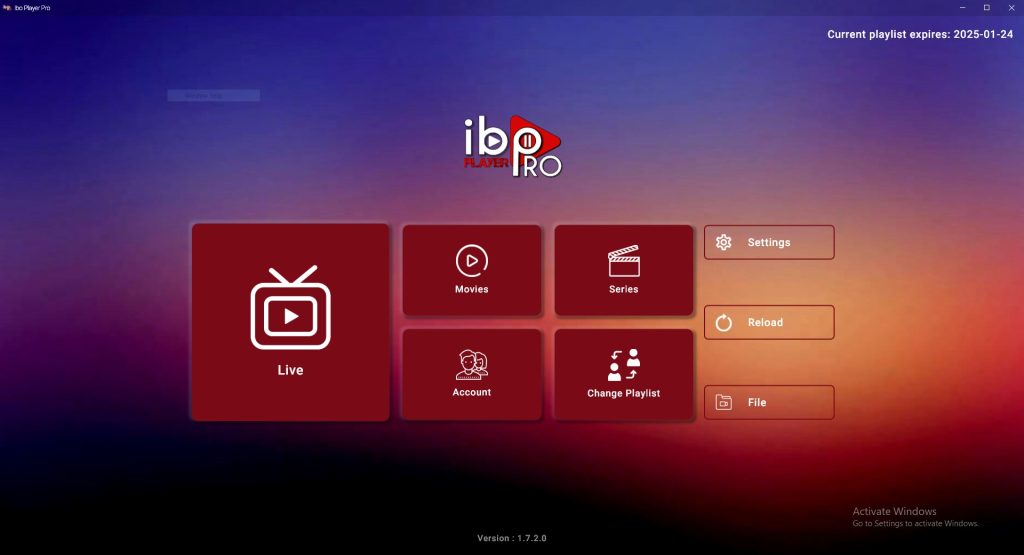
IBO Player Pro installation varies by platform. Here are detailed instructions for each device type.
Installation on Android Smartphone/Tablet
The most common way to use IBO Player Pro is through your Android device.
Method 1: Via Google Play Store (Recommended)
Step 1: Open Google Play Store
- Tap the Play Store icon on your home screen
- Make sure you are logged in with your Google account
Step 2: Search for IBO Player Pro
- Tap the search bar at the top
- Type:
IBO Player Pro - Select the app from search results
Look for the official icon (blue with white logo) and developer name: “AMOXI LLC” or “IBO Player”
Step 3: Install the App
- Tap “Install”
- Accept requested permissions:
- 📶 Network access (for streaming)
- 📁 Storage (for playlists and settings)
- 📺 Media access (for video playback)
- Wait until installation is complete (30-60 seconds)
Step 4: Open IBO Player Pro
- Tap “Open” in Play Store
- Or find the icon on your home screen
- App opens for the first time
Step 5: Initial Setup When you first start it, a welcome screen will appear:
- Select your language (Dutch)
- Choose color theme (Light/Dark)
- Accept terms of use
- Tap “Continue”
Method 2: APK Installation (For Advanced Users)
If the app is not available in your country or you want the latest version:
⚠️ Warning: Download only from official sources. Unofficial APKs may contain malware.
Step 1: Enable Unknown Sources
- Go to Android Settings
- Select “Security” or “Privacy”
- Find “Unknown Sources” or “Install Apps”
- Enable for your browser or file manager
Step 2: Download APK
- Visit the official IBO Player website
- Go to Downloads section
- Download the latest IBO Player Pro APK
- File is saved in Downloads folder
Step 3: Install APK
- Open your File Manager app
- Navigate to Downloads
- Tap on
IBO-Player-Pro-vX.XXapk - Tap “Install”
- Wait until installation is complete
Step 4: Disable Unknown Sources (Recommended)
- Go back to Settings → Security
- Disable “Unknown Sources” for extra security
Installation on iPhone and iPad (iOS)
IBO Player Pro is also available for Apple devices.
Step 1: Open App Store
- Tap the App Store icon
- Make sure you are signed in with your Apple ID
Step 2: Find IBO Player Pro
- Tap the “Search” tab at the bottom
- Type in search bar:
IBO Player Pro - Select the correct app (check developer name)
Step 3: Download and Install
- Tap the price button (€5.99 – €9.99)
- Confirm with Face ID, Touch ID, or password
- Wait for download and automatic installation
Step 4: Trust Developer (Sometimes Required) If you get a message about “Untrusted Developer”:
- Go to iOS Settings
- Select “General” → “VPN & Device Management”
- Find IBO Player Pro profile
- Tap “Trust”
Step 5: Open and Configure
- Tap on the IBO Player Pro icon
- Follow the welcome wizard
- Select Dutch language
iOS Specific Note:
- iOS version has a slightly different interface due to Apple guidelines
- Some features (such as external player) are limited
- Picture-in-Picture only works on iPad and iPhone 12+
🎬 Ready for the Ultimate IPTV Experience?
Now you know how IBO Player Pro works – but without premium IPTV content, you're missing the best part!
🌟 Why Wait? Start Today!
With BesteverIPTV + IBO Player Pro you get:
📺 Unlimited Entertainment
- 25,000+ Live Channels
- All Dutch TV (NPO, RTL, SBS, regional)
- Belgian channels complete
- Turkish television package
- Moroccan canals
- International content from 50+ countries
- 150,000+ Movies & Series
- Latest cinema films
- Popular Netflix/Disney+ series
- Dutch subtitles
- 4K quality where possible
- Premium Sport
- Sky Sports complete package
- beIN Sports (all channels)
- ESPN & Fox Sports
- Ziggo Sport
- Formula 1, Football, Tennis, NBA
💎 Premium Features
- ✅ 7-day catch-up (never miss a thing!)
- ✅ EPG for all channels
- ✅ Multiple audio tracks & subtitles
- ✅ 99.9% uptime (more reliable than cable!)
- ✅ Anti-buffer technology
- ✅ Dutch servers (super fast)
💰 Prizes You Can't Refuse
🔥 PROMOTION: Limited Time!
| Subscription | Normal Price | Your Price | Savings |
|---|---|---|---|
| 12 months 🏆 | ~~€119,99~~ | €49,99 | €70 discount! |
| 6 months | ~~€69,99~~ | €29,99 | €40 discount! |
| 3 months | €19,99 | €19,99 | Perfect for testing |
💡 Calculation example 12 months:
- €49.99 ÷ 12 months = €4.17 per month
- Less than a large latte at Starbucks!
- All channels + VOD + Catch-up included
Compare to Cable TV:
- Ziggo Complete: €74.95/month (€899/year) 😱
- KPN Complete: €69/month (€828/year) 😱
- BesteverIPTV: €4.17/month (€49.99/year) 🎉
- Save more than €800 per year!
🆓 Still unsure? Try it for free!
Free 4-Hour Trial
- Full access to all 25,000+ channels
- Test on all your devices with IBO Player Pro
- No credit card or payment required
- Directly active after application
👉 Request Free Test (4 Hours) →
🚀 Get Started Now
Choose what suits you:
🏆 Best Choice: 12 Months
- Lowest price per month
- A whole year without worries
- Best value for money
- 👉 Order 12 Months (€49.99) →
⭐ Popular: 6 Months
- Good balance between price and commitment
- Six months of entertainment
- 👉 Order 6 Months (€29.99) →
🎯 For Testers: 3 Months
- Get acquainted without a large investment
- Upgrade later possible
- 👉 Order 3 Months (€19.99) →
✨What Happens After Ordering?
Super Fast & Easy:
- Order your chosen subscription (30 seconds)
- Receive within 5 minutes email with:
- Xtream Codes credentials
- M3U playlist URL
- EPG URL
- Step-by-step instructions
- Enter IBO Player Pro (as explained in this guide)
- Look! Direct access to 25,000+ channels
🎁 BONUS With Every Order:
- Setup support via chat (24/7)
- Dutch customer service
- Money-back guarantee (7 days)
- Regular updates & new channels
- Priority support status
🛡️ Risk-Free Guarantee
Not satisfied? Get your money back!
- 7-day money-back guarantee
- No questions, no hassle
- Full refund
You literally risk nothing!
⏰ Promotion Ends Soon: These special prices are limited. Regular prices will be restored soon.
Installation on Smart TV (Android TV)
For the best living room IPTV experience, install IBO Player Pro directly on your Smart TV.
Suitable for:
- Sony Bravia with Android TV
- Philips Android TVs
- TCL Android TVs
- Hisense Android TVs
- Mi Box, Nvidia Shield
- Other Android TV devices
Step 1: Open Google Play Store on TV
- Press the “Home” button on the remote control
- Navigate to the “Apps” section
- Select “Google Play Store”
Step 2: Search (With TV Remote) This can be tricky without a keyboard:
Option A: Voice Search (Easiest)
- Press microphone button on remote
- Say: “IBO Player Pro”
- Select app from results
Option B: Manual Typing
- Use navigation buttons to select letters
- Type:
IBO PLAYER PRO - Confirm search
Pro Tip: Pair a wireless keyboard via Bluetooth for easier navigation and searching.
Step 3: Install App
- Select IBO Player Pro
- Press “Install”
- Accept permissions
- Waiting for installation (may take 2-3 minutes)
Step 4: Launch from Home Screen
- Back to Home screen
- IBO Player Pro appears in the “Apps” row
- Open the app
Step 5: TV Optimizations When first started on TV:
- Select “TV Mode” for optimized interface
- Larger text and buttons
- Remote-friendly navigation
- Select “Dark Theme” (better for eyes in dark room)
Installing on Amazon Fire TV Stick
The Fire Stick is a popular and affordable way to watch IPTV. IBO Player Pro works perfectly on this platform.
Fire Stick Preparation
Step 1: Enable Apps from Unknown Sources
- Go to Fire TV Settings (gear icon)
- Select “My Fire TV” or “Device”
- Select “Developer Options”
- Enable “Apps from Unknown Sources”
- Confirm warning with “Turn On”
Installation via Downloader App
Step 2: Install Downloader
- Open Amazon Appstore
- Search for “Downloader” (by AFTVnews.com)
- Install this free utility app
- Open Downloader
Step 3: Download IBO Player Pro APK
- In Downloader app, you see URL field
- Enter: [official IBO Player download URL]
- Or use code:
iboplayerpro(if supported) - Tap “Go”
- APK is downloading
Step 4: Install APK
- Download completed → “Install” prompt appears
- Click on “Install”
- Wait for installation to complete (30-60 seconds)
- Click “Done” (not “Open” – clean up first)
Step 5: Clean up
- Downloader asks if you want to delete APK
- Select “Delete” to save storage space
- APK deleted but app remains installed
Step 6: Launch IBO Player Pro
- Go to Fire TV Home
- Navigate to “Apps” → “See All”
- Find IBO Player Pro (sorted alphabetically)
- Open the app
Pro Tip: Pin IBO Player Pro to your home screen:
- Highlight IBO Player Pro icon
- Press “Menu” button (3 lines) on remote
- Select “Move to front”
- App now prominently appears on home screen
Fire Stick Specific Optimizations:
- Use “Remote Friendly” mode in IBO settings
- Pair Ethernet adapter for a more stable connection
- Clear cache regularly (Fire Stick has limited storage)
Installation on Formuler, MAG Box and Other IPTV Boxes
If you have a dedicated IPTV box, IBO Player Pro will work on it too.
For Android-based Boxes (Formuler Z-series, generic Android boxes):
Follow the instructions for “Android TV” above, or:
Step 1: Access Google Play Store
- If available: use Play Store method
- If not available: use APK method
Step 2: Transfer APK via USB
- Download IBO Player Pro APK on your PC
- Copy to USB stick
- Insert USB into box
- Use file manager to find APK
- Install
For Linux-based Boxes (MAG 322/324/425):
⚠️ Important note: IBO Player Pro does NOT work on MAG boxes because they run Linux, not Android. MAG boxes use their own "Stalker Portal" system.
Alternatives for MAG users:
- Use the built-in MAG portal (works with many providers)
- Consider switching to an Android-based box
- Use IBO Player Pro on second device (phone/tablet)
Configure BesteverIPTV in IBO Player Pro
Now that you've installed IBO Player Pro, it's time to configure your IPTV subscription. We'll use BesteverIPTV as an example, but the steps are similar for other providers.
What You Need
After ordering your BesteverIPTV subscription, you'll receive an email with login details. This email contains:
Option 1: M3U Playlist URL
https://besteveriptv.com/playlist/[your-unique-code]/playlist.m3u8Option 2: Xtream Codes API Data
- Server URL:
http://server.besteveriptv.com:8080 - Username:
your username - Password:
your password
Option 3: Portal URL (less common for IBO Player)
http://portal.besteveriptv.com/c/Plus:
- EPG URL: For electronic program guide
- Transmitter logos URL: For automatic logos
Method 1: Add M3U Playlist (Easiest for Beginners)
This is the most straightforward method.
Step 1: Open IBO Player Pro
- Launch the app on your device
- You see the main screen (possibly still empty)
Step 2: Go to Add Playlist
- Tap the “+” icon (usually at the bottom right)
- Or go to Menu (☰) → “Add Playlist”
- Or click on the big “Add Playlist” button in the middle
Step 3: Select Playlist Type Choose “M3U URL” or “Remote Playlist (M3U)”
Step 4: Fill in Data
Form appears with following fields:
Playlist Name:
BesteverIPTV(Or a custom name like “My TV”)
M3U Playlist URL:
[Paste your complete M3U URL from the email here]⚠️ Important:
- Copy the FULL URL
- Inclusive
https://orhttp:// - No spaces before or after URL
- Check for typos
EPG URL (Optional but Recommended):
[EPG URL from email]This will give you the electronic program guide.
Logo URL (Optional): Some providers provide a separate logo URL. BesteverIPTV usually includes logos in its playlist.
Auto-update interval: Select: “Daily” or “Every 12 hours” This way your channel list always stays up to date.
Step 5: Save and Load
- Tap “Save” or “Add”
- IBO Player Pro connecting to the server
- Channels are being downloaded
- EPG data is being synchronized
First load time: 1-3 minutes depending on the number of channels (BesteverIPTV = 25,000+ channels)
Progress indicator:
- You see a loading bar
- Percentage is shown
- Wait until 100% complete
Step 6: Verification After loading:
- You will see categories appear (Netherlands, Belgium, Sports, Movies, etc.)
- Tap on a category
- Channels are shown with logos
- Tap a channel to test
💰 Don't have an IPTV subscription yet? Start now!
IBO Player Pro is installed and configured – but without an IPTV subscription you can't watch anything!
🎯 BesteverIPTV: The Perfect Match for IBO Player Pro
Why 50,000+ Dutch People Choose BesteverIPTV:
✅ Extended Content
- 25,000+ live channels worldwide
- 150,000+ films & series on demand
- All Dutch channels (NPO, RTL, SBS, regional)
- Belgian TV complete (VRT, VTM, RTBF)
- Turkish television (100+ channels)
- Moroccan canals
- International sport without borders
✅ Premium Quality
- HD, Full HD & 4K streams
- 99.9% uptime guarantee
- Dutch servers (ultra-low latency)
- Anti-buffer technology
- No blackouts during events
✅ IBO Player Pro Optimized
- Instantly working Xtream Codes
- Automatic EPG integration
- Transmitter logos pre-installed
- Catch-up function included
- Complete VOD library: 150,000+ titles
💎 Choose Subscription
| Period | Price | Per month | Savings |
|---|---|---|---|
| 12 months 🏆 | €49,99 | €4,17 | Save €69! |
| 6 months | €29,99 | €5,00 | Save €25 |
| 3 months | €19,99 | €6,66 | Try risk-free |
🆓 Or Try it for Free First (4 Hours)
Not sure if IPTV is for you?
- Free 4-hour full access
- All 25,000+ channels available
- No credit card required
- Active immediately after registration
👉 Request a Free Test → 👉 Order Full Subscription →
🎁 Ordered Today = Active Today
- Choose your subscription
- Receive credentials within 5 minutes via email
- Enter IBO Player Pro (as explained above)
- Start watching 25,000+ channels!
✨ Includes:
- 24/7 Dutch customer service
- Setup help via chat/email
- Money-back guarantee (7 days)
- Regular updates & new channels
Troubleshooting M3U Loading:
Problem: “Failed to load playlist” error Solutions:
- ✅ Check internet connection
- ✅ Verify URL is correct (no spaces/typos)
- ✅ Test URL in browser (must download file)
- ✅ Check if subscription is active
- ✅ Contact BesteverIPTV support
Problem: Channels load but no EPG data Solution:
- EPG loads in stages, give it 6-24 hours
- Check if EPG URL is entered correctly
- Update EPG manually: Settings → EPG → Force Update
Method 2: Xtream Codes API (Recommended for Best Performance)
Xtream Codes API provides better stability and faster updates than M3U.
Step 1: Open Add Playlist
- Open IBO Player Pro
- Tap the “+” icon
Step 2: Choose Xtream Codes
- Select “Xtream Codes API”
- Or “Xtream / Stalker”
Step 3: Fill in API Data
Display Name:
BesteverIPTVServer URL:
http://server.besteveriptv.com:8080⚠️ NB:
- Without
/at the end - Mostly port
:8080or:80 - Exactly as stated in email
Username:
[Your username from email]Password:
[Your password from email]Step 4: Test Connection
- Some versions have “Test” button
- Click here to verify connection
- Green check = success
- Red X = problem with data
Step 5: Save
- Tap “Save” or “Add”
- IBO Player connects to server
- Download starts automatically
Advantages of Xtream Codes vs M3U:
- ✅ Faster channel switching
- ✅ Better EPG synchronization
- ✅ Catch-up TV works better
- ✅ VOD (Video on Demand) available
- ✅ Server-side favorites (sync between devices)
Step 6: Navigate Through Content
After successful configuration you will see:
Live TV Tab:
- All 25,000+ live channels
- Sorted by country/category
- Dutch channels (NPO, RTL, SBS)
- Belgian TV (VRT, VTM, RTBF)
- Turkish, Moroccan, International channels
- Sport (Sky Sports, beIN Sports, Ziggo Sport)
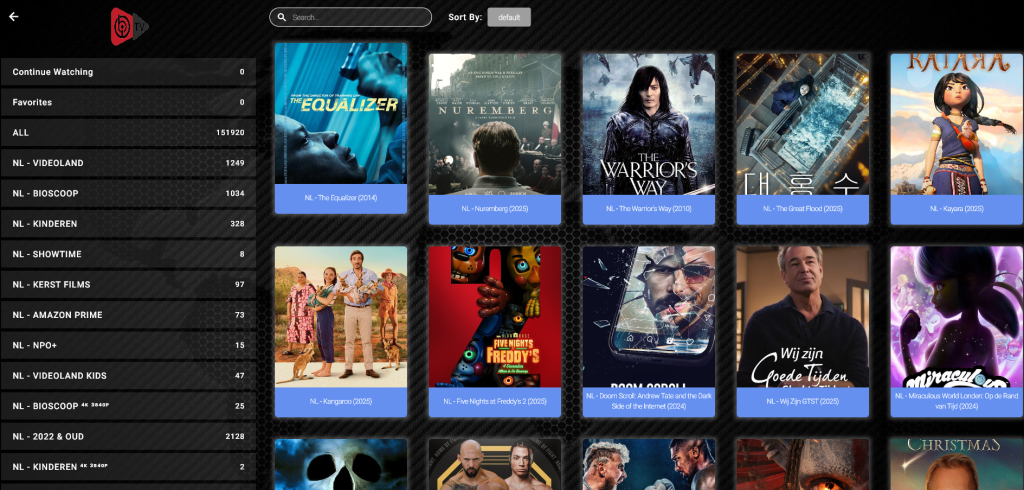
VOD/Movies Tab:
- 150,000+ films
- Sorted by genre
- Dutch subtitles where available
- Search function
Series Tab:
- Thousands of TV series
- Seasons and episodes
- Binge-watching mode
Catch-up Tab (If Available):
- Look back up to 7 days
- Organized by channel
Add Multiple IPTV Subscriptions
A powerful feature of IBO Player Pro is multi-playlist support.
Why Multiple Playlists?
- BesteverIPTV for Dutch/international content
- Second provider for specific sports events
- Test playlist from new provider
- Backup during server maintenance
Add:
- Go to Menu → Playlists
- Tap the “+” icon again
- Add second provider (same process)
- Provide a clear name (e.g. “Sport Extra”)
Switching Between Playlists:
- Open Menu (☰)
- See list of all your playlists
- Tap on desired playlist
- IBO Player is loading that content
Active Playlist Indicator:
- Green check or highlight shows active playlist
- Quick switch without closing the app
IBO Player Pro Interface: Complete Tour
Let's explore the interface so you know where everything is.
Main Screen Layout
When you open IBO Player Pro you will see:
Top Bar:
- 🔍 Search icon: Quick search through channels
- ⚙️ Settings icon: App settings
- 📺 Playlist name: Which playlist you use
- 📶 Connection status: Connection quality indicator
Left Sidebar (or Bottom Bar on mobile):
- 📺 Live TV: All live channels
- 🎬 Movies: VOD film library
- 📺 Series: TV shows and series
- ⏮️ Catch-up: Look back function
- ⭐ Favorites: Your favorite channels
- ⚙️ Settings: Configuration options
Middle Section:
- Category list: Left (or top on mobile)
- Channel list: Middle
- Now Playing: Preview right (desktop/tablet)
Live TV Tab in Detail
This is where you spend most of your time.
Category Navigation:
- Netherlands (all Dutch channels)
- Belgium (Flemish & Walloon)
- Turkey (Turkish TV)
- Morocco (Moroccan channels)
- Sport
- Movies Channels
- Kids
- News
- Documentary
- Entertainment
- And more…
Channel List: Each channel shows:
- 📺 Transmitter logo
- 🔤 Channel name
- 📊 EPG info: “What's on now”
- 🕐 Times: Start and end time program
Filter and Sort Options:
- Sort by: Name (AZ), Number, Recent
- Filter: Show only HD, 4K, favorites
Video Player Interface
Tap a channel and the player will open.
Player Controls:
- ⏯️ Play/Pause
- ⏭️ Next Channel
- ⏮️ Previous Channel
- 🔊 Volume: Slider of +/- buttons
- ⚙️ Settings: Audio tracks, subtitles, quality
- 📺 Aspect Ratio: Fill, Fit, Stretch
- 🖼️ PiP Mode: Picture-in-Picture (mobile)
- ⭐ Add to Favorites: Heart icon
- 📺 Channel Info: Expand EPG details
Swipe Gestures (on mobile/tablet):
- Swipe left/right: Next/previous channel
- Swipe up: Open channel list
- Swipe down: Close player
- Double tap: Play/Pause toggle
Long Press Actions:
- Long press on screen: Show/hide controls
- Long press channel number: Favorites menu
EPG (Electronic Program Guide)
The program guide is essential for planning what to watch.
Open EPG:
- Press “EPG” button in player
- Or via Menu → EPG
- Tap on channel in list to see EPG instantly
EPG Navigation:
- Horizontal scrolling: Through time (today → next days)
- Vertical scrolling: Through canals
- Time jump: Click on time slots at the top
- Day selection: Swipe to view other day
EPG Features:
- 📅 7 days ahead: See full week programming
- ⏰ Reminders: Set notifications for programs
- 📝 Program info: Extensive descriptions
- 🎬 Instant play: Tap program to watch now
- ⏮️ Catch-up: Tap past programs to watch again
EPG Personalization:
- Settings → EPG Settings
- Time format: 12h or 24h
- Show only favorite channels in EPG
- EPG shift: Adjust time zone if necessary
Using Advanced Features
Time to discover the powerful features of IBO Player Pro.
Creating and Organizing Favorites
With 25,000+ channels, organization is key.
Add to Favorites:
Method 1: While Watching
- Open a channel
- Tap the heart (⭐) icon
- Channel is added to “Favorites”
- Confirmation appears briefly on the screen
Method 2: From Channel List
- Long press on channel in list
- Select “Add to Favorites” from the menu
- Finished!
Method 3: Bulk Add
- Go to Settings → Favorites
- Select multiple channels at once
- Tap “Add Selected to Favorites”
Create Custom Favorites Groups:
IBO Player Pro lets you create multiple favorites lists:
Step 1: Menu → Favorites → “+” icon Step 2: Enter a name (e.g. “Sports”, “News”, “Kids”) Step 3: Add channels to specific group Step 4: Switch between groups in Favorites tab
Examples of useful groups:
- 📰 Daily News: NPO News, RTL News, BBC, CNN
- ⚽ Sport: All sports channels in one place
- 👶 Kids Safe: Only child-friendly channels
- 🇳🇱 Top Dutch: Your favorite Dutch channels
- 🎬 Movie Channels: HBO, Film1, Ziggo Movies
Favorites Order:
- Long press on channel in favorites
- Drag to desired position
- Release to place
Parental Control
Protect children from inappropriate content.
Setup Process:
Step 1: Enable Parental Control
- Go to Settings → Parental Control
- Toggle “Enable Parental Control”.
- Select 4-digit PIN code
- Confirm PIN
Step 2: Block Categories
- Select categories to protect:
- ✅ Adult content
- ✅ Horror channels
- ✅ News (optional)
- ✅ Specific countries
Step 3: Block Individual Channels
- Browse to channel
- Long press → “Lock Channel”
- PIN required to view
Step 4: Time Restrictions (Pro Feature)
- Set times when blocking is active
- For example: 2:00-8:00 PM (after school until bedtime)
- Kids can then only see safe content
PIN Reset: If you have forgotten your PIN:
- Settings → Parental Control → “Forgot PIN”
- Verify via email (requires account registration)
- Or: reinstall the app (delete all settings!)
Catch-up TV and Rewatch
Never miss your favorite program again.
What is Catch-up? Catch-up lets you watch programs that have already been broadcast, up to 7 days ago.
Requirements:
- ✅ IBO Player Pro version (not free)
- ✅ IPTV provider must support catch-up (BesteverIPTV does this)
- ✅ Xtream Codes API connection (does not work with simple M3U)
Catch-up Uses:
Method 1: Via EPG
- Open EPG for a channel
- Scroll back to previous programs (marked in gray)
- Tap on a program that has already finished
- “Play from beginning” option appears
- Watch the program again!
Method 2: Via Catch-up Tab
- Go to “Catch-up” section
- See list of channels with catch-up
- Select channel
- Select program from the last 7 days
- Start playback
Catch-up Player Features:
- ⏩ Fast forward: Skip boring parts
- ⏪ Rewind: Replay missed scenes
- ⏯️ Pause: Pause and resume later
- 🔖 Resume: App remembers where you were
Limit: Not all channels have catch-up. Premium channels (Netherlands, Belgium) usually do, but smaller international channels sometimes don't.
Recording Function (PVR)
Record your favorite shows to watch later.
⚠️ Requirements:
- IBO Player Pro (not available in free version)
- External storage on Android devices (USB, SD card)
- iOS: Limited support (Apple restrictions)
Recording Setup:
For Android/Android TV:
Step 1: Configure Storage
- Go to Settings → Recording
- Select “Storage Location”
- Choose:
- Internal Storage (limited space)
- SD Card (recommended)
- USB Drive (for TV boxes)
- Network Storage / NAS (advanced)
Step 2: Set Recording Quality
- Settings → Recording → Quality
- Options:
- Original: Best quality, largest files
- High: Good balance (recommended)
- Medium: Smaller files
- Low: For limited storage
Step 3: Format and Buffer Settings
- Format: TS (most compatible) or MP4
- Buffer: 60-120 seconds (prevents missed starts)
Start Recording:
Instant Recording (Record Now):
- While watching live TV
- Press “Record” button (🔴)
- Recording starts immediately
- Stop manually or let the program run until the end
Scheduled Recording (Planned):
- Open EPG
- Select future program
- Long press → “Schedule Recording”
- Confirm
- IBO Player automatically records at the set time
Recording Manager:
- Menu → Recordings
- See all active and completed recordings
- Manage storage space
- Delete old recordings
- Sort by date, channel, size
Pro Tip: Turn on “Auto-delete after watching” to automatically free up storage space.
Multi-View Mode (Multiple Streams Simultaneously)
Watch multiple channels simultaneously – perfect for sports!
Activate:
- Settings → Player → Enable Multi-View
- Or: Long press on video → “Multi-View”
Layouts:
- 📱 2 streams: Split screen (mobile)
- 📺 4 streams: Grid view (tablet/TV)
- 🖥️ PiP mode: One big + one small
Use Cases:
- ⚽ Multiple football matches at the same time
- 📰 News channels comparison
- 🏎️ Formula 1: Multiple camera angles
- 📊 Sports + statistics channel
Audio Control:
- Select which stream audio plays
- Mute specific streams
- Volume balance between streams
Performance Note: Multi-view requires a powerful device and a good internet connection (50+ Mbps for 4 HD streams).
Picture-in-Picture (PiP) Mode
Watch TV while using other apps.
Activate:
- During playback: Press Home button
- Or: Tap PiP icon in player
- Video resizes to floating window
PiP Controls:
- Drag window to desired position
- Resize by pinch gesture
- Tap window to return to fullscreen
- Close button to stop PiP
Works with:
- ✅ WhatsApp (chat while watching TV)
- ✅ Browser (google about program)
- ✅ Social media
- ✅ Other apps
Limits:
- Android 8.0+ required
- iOS: Only on iPad and iPhone 12+
- Some DRM content blocks PiP
Using External Video Players
IBO Player Pro's built-in player is good, but you can also use external players.
Popular External Players:
- VLC Player: Best compatibility
- MX Player: Popular on Android
- MPV: Lightweight and fast
- Vimu Player: Powerful but paid
Setup:
Step 1: Install External Player
- Download desired player from Play Store
- Install and open it (for first setup)
Step 2: Configure in IBO Player
- Settings → Player Settings
- Select “External Player”
- Select your installed player
Step 3: Use
- Open a channel
- Stream now opens in external player
- Use that player's controls
Why External Player?
- Better hardware decoder support
- More codecs support
- Personal preference for interface
- Specific features (subtitle styling, audio equalizer)
Disadvantages:
- Loses IBO Player's EPG integration in player
- No seamless channel switching
- Catch-up and recording may not work
VPN Integration for Privacy
For extra privacy and access to geo-restricted content.
Why VPN with IPTV?
- 🔒 Encryption of your internet traffic
- 🌍 Bypass geo-blocking
- 🛡️ Privacy of your ISP
- 🚀 Sometimes better routing (less buffering)
VPN Setup:
Step 1: Choose VPN Provider Recommended for IPTV:
- NordVPN (fast, many servers)
- ExpressVPN (reliable, expensive)
- Surfshark (budget-friendly)
- Private Internet Access
Step 2: Install VPN App
- Download VPN app from provider
- Login with account
- Configure settings
Step 3: Connect VPN
- Open VPN app (FOR IBO Player)
- Connect to server (choose close to country for speed)
- Waiting for connection
Step 4: Verify Connection
- Check IP via website (whatismyip.com)
- Must show VPN IP, not your own
Step 5: Launch IBO Player
- Open IBO Player Pro
- All traffic now goes via VPN
- Watch normal TV
VPN Tips for IPTV:
- Use servers in the Netherlands for NL content (fastest)
- Avoid free VPNs (slow, unreliable)
- Enable “Kill Switch” in VPN settings
- Test speed: with/without VPN
NB: VPN can slow down your speed. If buffering becomes a problem, try a different VPN server or disable it.
🎊 Last Chance: Upgrade to Premium IPTV!
You're now an IBO Player Pro expert – but are you already using premium content?
🔥 Exclusive Offer For Readers Of This Guide
SPECIAL DISCOUNT CODE: IBOGUIDE2025
🏆 With This Code You Get:
- Extra 10% discount on all subscriptions
- FREE 7 extra days on top of your period
- Priority setup support (direct assistance)
- BONUS: VPN Setup Guide (€15 value)
Examples with discount code:
| Normal | With IBOGUIDE2025 | You Pay | Per month |
|---|---|---|---|
| €49.99 (12m) | -€5.00 discount | €44,99 | €3.75/month! |
| €29.99 (6m) | -€3.00 discount | €26,99 | €4.50/month |
| €19.99 (3m) | -€2.00 discount | €17,99 | €6.00/month |
🎯 3 Steps to 25,000+ Channels
Step 1: Choose Your Subscription
- 12 months = Best deal (€3.75/month with code!)
- 6 months = Popular choice
- 3 months = Perfect for testing
Step 2: Use Discount Code
- Feed
IBOGUIDE2025in at checkout - See your discount calculated immediately
- Pay with iDeal, credit card or PayPal
Step 3: Receive & Activate
- Credentials in your inbox within 5 minutes
- Enter IBO Player Pro (now you know how!)
- Start watching immediately
🆓 Or Try It Free First (4 Hours)
Not 100% convinced yet?
Request Free Test:
- Full access (4 hours)
- All 25,000+ channels
- Test on all your devices
- No payment information required
- Instant activation
✨ Why Order Today?
Exclusive Benefits:
- ✅ Discount code only works today
- ✅ Direct access (5 minutes)
- ✅ 7-day money-back guarantee
- ✅ 24/7 Dutch support
- ✅ No setup costs
- ✅ No hidden costs
💡 Calculation example: €44.99 (with code) for a full year = €3.75/month
- Cheaper than one takeaway meal per month
- Unlimited entertainment for the whole family
- All sports, films, series, kids content
- Save €800+ vs. traditional TV
🎁 BONUS Package (Today)
When ordering with code IBOGUIDE2025 you will receive:
- IBO Player Setup Video (€19 value)
- Visual step-by-step explanation
- All devices covered
- VPN Configuration Guide (€15 value)
- Best VPNs for IPTV
- Setup instructions
- Troubleshooting Checklist (€9 value)
- Solve every problem
- Direct access to expert tips
- Priority Support Badge (€25/year value)
- Skip the queue
- Direct answer via chat
🔒 Secure Ordering: SSL secured checkout | iDeal, Credit card, PayPal | Money-back guarantee
Troubleshooting: Solving Problems
Even the best app can sometimes have issues. Here are solutions to the most common problems.
Problem 1: Buffering and Stuttering
Symptoms:
- Video keeps stopping
- “Loading…” message keeps appearing
- Pixelation in image
- Audio and video sync issues
Solutions:
A. Check Internet Speed
Required: - SD streams: 5-8 Mbps - HD streams: 10-15 Mbps - Full HD: 15-25 Mbps - 4K: 30-50 Mbps✅ Action:
- Test on speedtest.net
- Not enough? Upgrade your internet or lower the quality.
- Test at peak hours (evening)
B. Switch to Ethernet
- WiFi is inherently less stable
- Use ethernet cable if possible
- Especially important for 4K streaming
C. Lower Stream Quality
- IBO Player → Settings → Player
- Select “Force Quality”
- Choose lower resolution (720p instead of 1080p)
- Test if buffering stops
D. Change Decoder IBO Player has multiple decoders:
- Settings → Player → Decoder
- Try:
- Hardware: Best performance (default)
- Software: More compatible but slower
- Auto: Let IBO choose
E. Adjust Buffer Settings
- Settings → Player → Buffer Size
- Increase buffer:
- Small (default)
- Medium (recommended for buffering)
- Large (for slow connections)
- Higher buffer = more delay but less buffering
F. Clear Cache
- Settings → App Info → Clear Cache
- Or Android Settings → Apps → IBO Player → Clear Cache
- Restart app
G. Check BesteverIPTV Server Status
- Possible server-side issue
- Try another channel
- Contact BesteverIPTV support
Issue 2: EPG Not Loading or Incorrect
Symptoms:
- No program info visible
- Old EPG data
- EPG times are incorrect
Solutions:
A. Force EPG Update
- Settings → EPG
- Tap “Update EPG Now”
- Wait 5-10 minutes
B. Verify EPG URL
- Settings → Playlists
- Edit your BesteverIPTV playlist
- Check if EPG URL is correct
- Re-enter as needed
C. Time Zone Correction
- Settings → General → Timezone
- Select “Europe/Amsterdam” (for NL)
- Or “Auto-detect”
- EPG times should now be correct
D. Adjust EPG Offset If EPG is running a few hours ahead/behind:
- Settings → EPG → Time Offset
- Adjust: +2 or -2 hours
- Test until correct
E. Give It Time
- First EPG sync may take up to 24 hours
- Full 7-day data loads in phases
- Please be patient with new playlist
Issue 3: App Crashes or Freezes**
Symptoms:
- IBO Player closes unexpectedly
- App is no longer responding
- “App has stopped” error
- Hangs on loading screen
Solutions:
A. Force Close and Restart
- Android: Settings → Apps → IBO Player → Force Stop
- iOS: Swipe up app in app switcher
- Reopen app
B. Clear App Cache and Data
Warning: Clear Data will erase your settings!- Android Settings → Apps → IBO Player
- Tap “Clear Cache” (tries first)
- Still crashing? "Clear Data"
- Restart device
- Reconfigure playlist
C. Update App
- Open Play Store / App Store
- Check for IBO Player Pro updates
- Install latest version
- Restart device
D. Check Device Storage
- Low storage can cause crashes
- Android Settings → Storage
- Free at least 1-2 GB
- Remove unused apps/files
E. Reinstall App Last option:
- Uninstall IBO Player Pro
- Restart device
- Reinstall Play Store
- Reconfigure from scratch
Problem 4: Channels Not Playing
Symptoms:
- Error message when playing
- Black screen, no video
- Some channels work, some don't
Solutions:
A. Test Multiple Channels
- One channel not working: Possible server-side issue
- None work: Configuration problem
- Specific category not working: Provider issue
B. Verify Account Status
- Login to BesteverIPTV website
- Check if subscription is active
- Expired? Renew subscription
C. Check Max Connections Most IPTV subscriptions have a connection limit:
- BesteverIPTV: Usually 1-3 concurrent streams
- Log out on other devices
- Try again
D. Switch Stream Source Some channels have backup streams:
- Long press on channel
- Select “Choose Source”
- Try alternative stream
E. Update Playlist
- Settings → Playlists → BesteverIPTV
- Tap “Refresh” or “Update”
- Waiting for completion
- Retest channel
Problem 5: No Sound
Symptoms:
- Video plays but no audio
- Sound cuts out while watching
- Some channels have sound, others don't
Solutions:
A. Basic Checks
- ✅ Device volume not on mute
- ✅ IBO Player volume slider not at 0
- ✅ Bluetooth headphones connected? Check that volume
- ✅ TV speakers on (not on external audio mode)
B. Audio Track Selection Some streams have multiple audio tracks:
- During playback: tap screen
- Tap “Audio” icon (🔊)
- Select different track
- Test which works
C. Change Audio Decoder
- Settings → Player → Audio Codec
- Try different options:
- AAC
- MP3
- AC3
- Save and test
D. External Audio Player
- Install VLC or MX Player
- Settings → Use External Player
- Select VLC
- Test if audio works
Issue 6: Login Issues / Playlist Won't Load
Symptoms:
- Authentication failed
- Invalid credentials
- Server not responding
Solutions:
A. Double-Check Credentials Most common cause:
- ✅ Username: No spaces before/after
- ✅ Password: Case-sensitive! Pay attention to capitalization
- ✅ Server URL: Including http:// and port number
- ✅ Copy-paste directly from email (no typos)
B. Test Provider Website
- Login to BesteverIPTV website
- If that doesn't work: Account issue
- Contact support
C. Try Different Connection Method If Xtream Codes doesn't work:
- Try M3U URL method
- Or vice versa
D. Firewall / Antivirus
- Some security software blocks IPTV
- Temporarily disable for testing
- Add IBO Player as an exception
E. Contact Provider
- Possible account not activated
- Server maintenance
- IP whitelist required (some providers)
Optimize IBO Player Pro for Best Performance
Now that you know the basics, optimize the app for a perfect experience.
Recommended Settings Per Device Type
For Android Smartphones:
Settings → Player - Hardware Decoding: ON - Buffer Size: Medium - Video Quality: Auto Settings → Display - Aspect Ratio: Auto - Brightness: Auto Settings → Network - Connection Timeout: 15 seconds - Stream Protocol: AutoFor Android TV / Smart TV:
Settings → Player - Hardware Decoding: ON - Buffer Size: Large - Video Quality: Original (4K if supported) - Decoder: Hardware Settings → Display - Aspect Ratio: Fill Screen - UI Scaling: Large (better readability) Settings → Remote Control - Enable D-Pad navigation: ON - Long press delay: MediumFor Fire TV Stick:
Settings → Player - Hardware Decoding: ON (critical for Fire Stick) - Buffer Size: Small-Medium (limited RAM) - Video Quality: 720p-1080p max Settings → Performance - Reduce animations: ON - Low memory mode: ON (for old Fire Sticks)For iPhone/iPad:
Settings → Player - Hardware Decoding: ON - Buffer Size: Medium - Cellular Streaming: OFF (unless unlimited data) Settings → Display - Picture in Picture: ON - Auto-rotate: ONNetwork Optimization Tips
For WiFi Users:
✅ Router Placement
- Place the router centrally in your home
- Avoid walls between router and device
- Raise the floor (better signal distribution)
✅ Using the 5GHz Band
- Faster than 2.4GHz
- Less interference
- Shorter range but more stable
✅ WiFi Channel Optimization
- Download WiFi analyzer app
- Find the least busy channel
- Change router to that channel
✅ QoS (Quality of Service)
- Router settings: Enable QoS
- Prioritize IBO Player/IPTV traffic
- Less buffering during heavy use
For Ethernet Users:
✅ Cable Quality
- Use at least Cat5e cable
- Cat6 or Cat7 for 4K/future-proof
- Max 100 meter cable length
✅ Network Speed
- Gigabit router and adapter
- Not necessary for IPTV but nice to have
Battery Optimization (For Mobile)
IBO Player may cause battery drain during long sessions.
Battery Saving Tips:
✅ Reduce Brightness
- Lower screen brightness while watching
- Use auto-brightness
✅ Background App Limits
- Android Settings → Battery
- Restrict background apps
- More resources for IBO Player
✅ Battery Saver Mode
- Android: Enable battery saver
- Reduced performance but longer viewing time
✅ Picture-in-Picture
- PiP uses less battery than fullscreen
- Smaller resolution rendering
✅ Plug In
- For long streaming sessions: Charging
- Prevents unexpected shutdowns
Regular Maintenance Checklist
Keep IBO Player Pro in top condition:
Weekly:
- [ ] Clear cache (Settings → Clear Cache)
- [ ] Check for app updates
- [ ] Update EPG data (Settings → Force Update)
Monthly:
- [ ] Review and delete old recordings
- [ ] Update playlist URL (if provider changed)
- [ ] Test backup playlist (if you have one)
- [ ] Review favorites and clean up
Per Quarter:
- [ ] Backup settings (Export configuration)
- [ ] Check BesteverIPTV for promo/updates
- [ ] Review parental controls (update for age)
- [ ] Test new features in updates
Frequently Asked Questions (FAQ)
General Questions
❓ Is IBO Player Pro legal?
The app itself is 100% legal – it's just a video player. Legality depends on the IPTV service you're using. BesteverIPTV and other legitimate, licensed providers are legal. "Free" IPTV services with all channels are often illegal.
❓ How much does IBO Player Pro cost?
- IBO Player (free): €0, with ads and limited features
- IBO Player Pro: One-time payment €5.99 – €9.99 (varies by region)
- No subscription: Pay once, use forever
- Updates: Included, no extra costs
❓ Does IBO Player work without an IPTV subscription?
No, IBO Player is a player app—not a content provider. You need an IPTV subscription like BesteverIPTV. Think of IBO Player as "TV" and IPTV subscription as "cable package."
❓ Can I use IBO Player Pro on multiple devices?
Yes! After purchasing, you can install the app on all your devices using the same Google/Apple account. Your playlist can be used on any device (subject to carrier connection limits).
❓ How much internet data does IPTV streaming use?
Approximations:
- SD quality: 0.5-1 GB per hour
- HD (720p): 1-2 GB per hour
- Full HD (1080p): 2-3 GB per hour
- 4K: 5-8 GB per hour
Tip: Use Wi-Fi whenever possible. Mobile data can run out quickly.
Technical Questions
❓ What is better: M3U or Xtream Codes?
Xtream Codes is superior:
- ✅ Faster channel switching
- ✅ Better EPG synchronization
- ✅ VOD and catch-up support
- ✅ Server-side favorites sync
M3U works fine too:
- ✅ Easier to configure
- ✅ More universally supported
- ⚠️ Set EPG separately
If your provider offers both (like BesteverIPTV): choose Xtream Codes.
❓ My EPG times are incorrect, how do I fix this?
Solution:
- Settings → General → Timezone
- Select “Europe/Amsterdam” for the Netherlands
- Or use “Auto-detect”
- If still wrong: Settings → EPG → Time Offset
- Adjust until correct (e.g. +2 or -2 hours)
❓ Can I use IBO Player Pro on Windows PC?
Yes, via Android emulator:
- Download Bluestacks or LDPlayer
- Install emulator on PC
- Download IBO Player Pro from Play Store in emulator
- Configure normally
NB: Performance depends on your PC specs.
❓ Does IBO Player work with VPN?
Yes, perfect! Recommended flow:
- Connect VPN first
- Open IBO Player Pro
- Watch normal TV
All traffic goes through a VPN. Choose a nearby VPN server for the best speed.
❓ What is the difference between IBO Player and IPTV Smarters?
| Feature | IBO Player Pro | IPTV Smarters |
|---|---|---|
| Price | €5-10 one-time | Free |
| Advertisements | None (Pro) | Yes |
| Interface | Modern, smooth | Functional |
| EPG | Excellent | Good |
| Catch-up | ✅ | ✅ |
| Recording | ✅ | ⚠️ Limited |
| Multi-view | ✅ | ❌ |
| iOS Support | ✅ | ✅ |
Both are good options. IBO Player Pro's advantage: Better UI, more features, no ads.
BesteverIPTV Specific Questions
❓ Is BesteverIPTV compatible with IBO Player Pro?
Absolutely! BesteverIPTV works perfectly with IBO Player Pro. You'll receive:
- M3U playlist URL (works immediately)
- Xtream Codes credentials (recommended)
- EPG URL automatically included
- 24/7 support for configuration issues
❓ How many devices can I use simultaneously with BesteverIPTV?
Standard BesteverIPTV subscription:
- 1 connection: Basic package
- 2 connections: Standard package
- 3+ connections: Premium/Family packages
When ordering, check how many concurrent streams are included.
❓ What if BesteverIPTV doesn't work in IBO Player?
Troubleshooting steps:
- Verify login details (copy-paste from email)
- Check internet connection
- Test other channel
- Update playlist (Settings → Refresh)
- Contact BesteverIPTV support (available 24/7)
- They can check your account and help you immediately
❓ How often should I update my BesteverIPTV playlist?
Recommended:
- Auto-update: Daily (Settings → Auto-update)
- Manual: Weekly or when problems occur
- BesteverIPTV updates servers regularly with new channels
IBO Player Pro Alternatives Comparison
For completeness, here are popular alternatives:
TiviMate (Android TV Focus)
Advantages:
- Beautiful interface on TV
- Excellent EPG layout
- Recording functionality
- Multiple playlists support
Disadvantages:
- Mainly for Android TV (mobile version limited)
- Premium required for best features (€15/year)
- Less intuitive than IBO Player
Best for: Android TV users who value the EPG interface.
IPTV Smarters Pro
Advantages:
- Free with minimal ads
- Simple and straightforward
- Large user base (many support forums)
- iOS and Android
Disadvantages:
- Ads in free version
- Interface less modern
- Fewer features than IBO Player Pro
Best for: Budget-conscious users, beginners who want to test for free.
GSE Smart IPTV
Advantages:
- Completely free, no Pro version needed
- Remote Playlist feature (sync between devices)
- Good iOS support
- Chromecast integration
Disadvantages:
- Complex interface (steep learning curve)
- Bugs and crashes reported
- Development sometimes slow
Best for: iOS users looking for free alternative.
Perfect Player
Advantages:
- Very lightweight
- Fastest performance
- Minimalist design
- Works on old devices
Disadvantages:
- Outdated UI design
- Limited features
- No official iOS version
Best for: Users with old Android devices, minimalists.
Verdict: Why IBO Player Pro?
For most users, IBO Player Pro is the best choice because:
- ✅ Balance between features and ease of use
- ✅ Cross platform (Android, iOS, TV)
- ✅ One-time payment (no subscription)
- ✅ Regular updates and support
- ✅ Perfect with BesteverIPTV
- ✅ Ad-free in Pro version
- ✅ Stable and crash-free
The Perfect Setup: IBO Player Pro + BesteverIPTV
For the ultimate IPTV experience, combine IBO Player Pro with BesteverIPTV.
Why This Combination Works Perfectly
IBO Player Pro offers:
- 🎯 Premium interface without ads
- 🚀 Fast, stable playback
- 📱 Multi-platform support
- ⚙️ Advanced features
- 🎬 VOD and catch-up ready
BesteverIPTV delivers:
- 📺 25,000+ live channels
- 🇳🇱 Complete Dutch channels (NPO, RTL, SBS, regional)
- 🇧🇪 Belgian TV (VRT, VTM, RTBF)
- 🇹🇷 Turkish television (TRT, ATV, Show TV, Star TV)
- 🇲🇦 Moroccan channels
- ⚽ International sports (Sky Sports, beIN, ESPN, Ziggo Sport)
- 🎬 150,000+ films and series on demand
- 📅 Complete EPG (7 days ahead)
- ⏮️ Catch-up TV (watch up to 7 days)
- 💯 99.9% uptime guarantee
- 🛟 24/7 Dutch customer service
BesteverIPTV Subscriptions for IBO Player Pro Users
If you invest in IBO Player Pro (€5-10), you will also earn premium IPTV content.
Prices:
| Duration | Total price | Per month | Ideal For |
|---|---|---|---|
| 3 months | €19,99 | €6,66 | Trying and testing |
| 6 months | €29,99 | €5,00 | Six months of worry-free viewing |
| 12 months | €49,99 | €4,17 | 🏆 Best deal! Full year |
What's Included:
✅ Complete Channel Packages
- All Dutch public and commercial channels
- Belgian TV complete (Flemish & Walloon)
- Full Turkish television lineup
- Moroccan channels
- Thousands of international channels
- Premium sports from all over Europe
✅ Premium Features
- Full EPG (Electronic Program Guide)
- Catch-up TV up to 7 days ago
- VOD library: 150,000+ movies & series
- 4K streams where available
- Multiple audio tracks and subtitles
- Multiple backup servers
✅ IBO Player Pro Optimized
- Instantly working Xtream Codes credentials
- M3U URL also available
- EPG automatically included
- Transmitter logos pre-installed
- Setup support specifically for IBO Player
✅ Reliable Service
- 99.9% uptime commitment
- Dutch servers (low latency)
- Load balancing for optimal performance
- Anti-freeze technology
- No blackouts during prime time
✅ Support & Service
- 24/7 Dutch customer service
- Live chat support
- IBO Player setup help
- Troubleshooting within 1 hour
- Extensive FAQ and guides
Quick Start: From Zero to Watching in 10 Minutes
Here's the fastest way to 25,000+ channels:
Minute 1-2: Order BesteverIPTV
- Go to BesteverIPTV website
- Choose subscription (recommended: 12 months for €49.99)
- Enter details and pay
- Receive direct email with credentials
Minute 3-4: Install IBO Player Pro
- Open Play Store or App Store
- Search “IBO Player Pro”
- Buy and install (€5-10 one-time)
- Open app for the first time
Minutes 5-7: Configure BesteverIPTV
- Tap “+” in IBO Player
- Select “Xtream Codes”
- Fill in:
- Name: BesteverIPTV
- Server: [from email]
- Username: [from email]
- Password: [from email]
- Save and wait for loading
Minutes 8-9: Explore Content
- Browse 25,000+ channels
- Test Dutch channel (NPO 1, RTL 4)
- Check EPG operation
- Add to favorites
Minute 10: Enjoy!
- Watch your favorite program
- Perfect picture and sound
- No buffering
- You're done! 🎉
Pro Tips from Experienced Users
Here are insider tips from people who use IBO Player Pro daily:
Tip 1: Create Smart Favorite Groups
Instead of one big favorites list, create specific groups:
“Quick Zap” Group:
- Your top 10 most watched channels
- For quick switching between favorites
- NPO 1, RTL 4, Net5, Discovery, National Geographic, etc.
Morning News Group:
- All news channels together
- Perfect for morning routine
- NPO News, RTL News, BBC, CNN, Sky News
“Sports Sunday” Group:
- All sports channels
- Including alternatives for competitions
- Sky Sports package, beIN Sports, ESPN, Ziggo Sport
“Kids Safe” Group:
- Only child-friendly content
- Enable Parental Control for other groups
- Nickelodeon, Disney Channel, NPO Zapp
Tip 2: Use EPG Reminders Strategically
Never miss your favorite program again:
Setup:
- Open EPG for channel
- Scroll to future program
- Long press → “Set Reminder”
- Choose reminder time (5/15/30 min in advance)
Smart Reminder Use:
- Football matches (15 minutes beforehand)
- Daily series (5 min before)
- Special films (30 min beforehand to get snacks!)
Tip 3: Perfect Multi-View Setup for Sports
For football fans with multiple matches at the same time:
Best Layout:
- Tablet/TV: 4-way split screen
- Main contest: Largest screen (top-left)
- Other competitions: Smaller screens
- Main match audio
Pro Setup:
- Main device (TV): Main match fullscreen
- Tablet next to you: Multi-view with other matches
- Best of both worlds!
Tip 4: Optimize for Night Vision
If you often watch late at night:
Settings adjustments:
- Dark theme: Better for eyes in a dark room
- Reduce brightness: 30-40% is enough
- Auto-sleep timer: Settings → Sleep Timer
- Set to 60/90 minutes
- App stops automatically (save data & battery)
Bluetooth Headphones:
- Pair with device
- IBO Player audio automatically goes to headphones
- Don't wake your family anymore!
Tip 5: Data Saving on Mobile
For when you're watching on the go on 4G/5G:
Settings → Network:
- “Cellular Data Warning”: Enable
- “Max quality on cellular”: 480p or 720p
- “Preload only on WiFi”: Enable
Data Monitoring:
- Android: Settings → Data Usage → IBO Player
- Check how much used per day/week
- Adjust quality if too much
Download for Offline: If your provider allows it:
- Download favorite shows via WiFi
- Watch on the go without data usage
- Perfect for train/plane
Tip 6: Backup Your Perfect Setup
After weeks of customizing, you don't want to do everything again:
Regular Backups:
- Settings → Backup & Restore
- Tap “Create Backup”
- Save to:
- Google Drive (cloud)
- Local storage
- Email to yourself
Restore when:
- Bought a new device
- App reset after troubleshooting
- Switch between devices
What is backed up:
- All playlists and credentials
- Favorites groups
- EPG settings
- Player preferences
- Parental control settings
Tip 7: Family Sharing Best Practices
Multiple people in the house use IBO Player:
Option A: Multiple Devices, Same Account
- Install on any device
- Use the same BesteverIPTV credentials
- Check provider's connection limit!
- Everyone has their own favorites per device
Option B: Shared Device, Multiple Profiles
- Sorry: IBO Player does not have multi-profile support
- Workaround: Create favorites groups per person
- Dad's Channels
- Mom's Favorites
- Kids TV
- Everyone knows their group
Option C: Multiple Accounts
- Buy extra BesteverIPTV subscription
- Each family member has their own account
- More expensive but most privacy
Future Updates & Features
IBO Player is updated regularly. Here are some features users hope to see:
Possible Upcoming Features
Multi-Profile Support (Most Requested)
- Different favorites per user
- Individual watch history
- Separate parental controls
Enhanced Recording
- Cloud recording storage
- Schedule series recording (auto-record new episodes)
- Recording queue management
Social Features
- Share what you watch with friends
- Recommendations based on viewing history
- Comments/reviews on VOD content
AI Features
- Smart recommendations
- Auto-organize channels by preference
- Predictive buffering
Better iOS Integration
- SharePlay support (watch with friends on FaceTime)
- Deeper Siri integration
- Apple Watch remote control
Disclaimer: The features above are speculation based on user requests. There is no official confirmation from developers.
Conclusion: Is IBO Player Pro Worth It?
After reading this comprehensive guide, let's conclude:
Who is IBO Player Pro Perfect for?
✅ Absolutely yes for:
- IPTV beginners looking for user-friendly app
- Daily IPTV viewers (value for one-time investment)
- Families using multiple devices
- Power users who want advanced features
- BesteverIPTV users (perfect compatibility)
- People who value ad-free experience
- Cross-platform users (switch between phone/tablet/TV)
⚠️ Consider Alternatives such as:
- You only want free options (use IBO Player free version)
- You exclusively use iOS and prefer GSE
- You only have Android TV and prefer TiviMate
- Budget is absolutely a priority
The €5-10 Investment: Worth It?
Cost-benefit analysis:
One-time cost: €5-10 Usage: Lifetime (no subscription) Per year: €1-2 if you use it for 5 years Per month: Literally cents
What you get:
- No ads (alone worth it!)
- All premium features
- Multi-device support
- Regular updates included
- Priority support
Compare with:
- Netflix: €10/month (€120/year)
- Spotify Premium: €11/month (€132/year)
- YouTube Premium: €12/month (€144/year)
IBO Player Pro + BesteverIPTV (€4.17/month) = Complete IPTV solution for €4.17/month.
Verdict: Definitely a no-brainer investment for serious IPTV users.
Final Thoughts
IBO Player Pro is more than just an IPTV app – it's a complete entertainment hub that makes over 25,000 channels, movies, series, and live sports accessible on all your devices. The learning curve is minimal, the features are extensive, and the stability is excellent.
Combined with BesteverIPTV you get:
- Dutch, Belgian, Turkish, Moroccan TV
- International sports channels
- VOD library
- Catch-up functionality
- Reliable 99.9% uptime
- 24/7 Dutch support
Whether you're just getting started with IPTV or an experienced user switching from another app, IBO Player Pro offers the perfect balance between ease of use and advanced functionality.
Your Next Steps
Ready to get started? Here's your action plan:
Step 1: Download IBO Player Pro
📱 Android: [Play Store Link – IBO Player Pro] 🍎 iOS: [App Store Link – IBO Player Pro] 📺 Android TV: Play Store on your TV 🔥 Fire Stick: Via Downloader app
Costs: €5.99 – €9.99 one-time
Step 2: Choose Your BesteverIPTV Subscription
🏆 Most Popular: 12 Months = €49.99
- Best price per month (€4.17)
- A whole year without worries
- Highest value
⭐ For Beginners: 3 Months = €19.99
- Test the service
- No big commitment
- Upgrade later possible
💎 Half Year: 6 Months = €29.99
- Good balance
- €5/month
- Ideal for season watchers
👉 [Order BesteverIPTV Subscription →]
Step 3: Configure in 10 Minutes
Follow the step-by-step instructions in this guide:
- Open IBO Player Pro
- Tap “+” for new playlist
- Choose Xtream Codes (recommended) or M3U
- Enter BesteverIPTV credentials (from email)
- Save and wait for loading
- Start watching!
Step 4: Optimize and Personalize
- Create favorites groups
- Set up parental controls (if kids)
- Configure EPG reminders
- Test catch-up function
- Explore VOD library
Step 5: Enjoy 25,000+ Channels!
You're now ready for the ultimate IPTV experience. Enjoy:
- 📺 Dutch TV in HD and 4K
- ⚽ All major sporting events live
- 🎬 Latest movies and series on demand
- 🌍 International content from 50+ countries
- ⏮️ Catch-up: Never miss programs again
Last Word
You now have everything you need to install, configure, and optimize IBO Player Pro for the perfect IPTV experience. From basic setup to advanced features like multi-view, recording, and catch-up TV – you're an IBO Player Pro expert!
The combination of IBO Player Pro's user-friendly interface and powerful features with BesteverIPTV's extensive content library and reliable service gives you an IPTV setup that rivals (and often surpasses) traditional cable TV.
Key Takeaways:
- ✅ IBO Player Pro is the best all-round IPTV app for 2025
- ✅ One-time investment of €5-10 = lifelong use
- ✅ Works perfectly with BesteverIPTV (25,000+ channels)
- ✅ Cross-platform: Android, iOS, Smart TV, Fire Stick
- ✅ Feature-rich: EPG, catch-up, recording, multi-view
- ✅ Easy to use for beginners AND power users
Ready to get started?
🚀 Start today:
- Download IBO Player Pro (€5-10)
- Order BesteverIPTV (from €19.99)
- Configure in 10 minutes
- Enjoy 25,000+ channels!
Frequently Asked Questions – Quick Overview
Q: Will IBO Player Pro work on my device? A: Yes, on Android 5.0+, iOS 12.0+, Android TV, Fire Stick, and Smart TVs.
Q: Is BesteverIPTV legal? A: Yes, BesteverIPTV is a legal, licensed IPTV provider.
Q: How much does the complete setup cost? A: IBO Player Pro: €5-10 one-time + BesteverIPTV: €19.99-49.99 per period.
Q: Can I test it for free first? A: IBO Player has a free version. BesteverIPTV offers a 3-month subscription (€19.99).
Q: How much internet do I need? A: Minimum 15 Mbps for HD, 30+ Mbps for 4K.
Q: Does it work with VPN? A: Yes, perfectly compatible with all VPN services.
Q: Will I get Dutch support? A: Yes, BesteverIPTV has 24/7 Dutch customer service.
Q: How many devices at the same time? A: Depends on your BesteverIPTV package (1-3+ concurrent streams).
📺 IBO Player Pro + BesteverIPTV = The Perfect IPTV Solution for the Netherlands
25,000+ Channels | HD & 4K | Catch-up TV | 24/7 Support | From €4.17/month
Ready for the best IPTV experience in the Netherlands? Start today! 🎉
Article last updated: December 28, 2025 Version: IBO Player Pro v4.x | BesteverIPTV Service Status: ✅ Online
💡 Need Help? Contact BesteverIPTV support 24/7 via WhatsApp or email. Our technical experts are happy to help you with IBO Player Pro setup and configuration!
 English
 Nederlands
 Nederlands (België)
 Français